Search
Original Search Tool
With Search you can quickly find individual items monitored by XorMon.
You can search by item name or by its other properties.
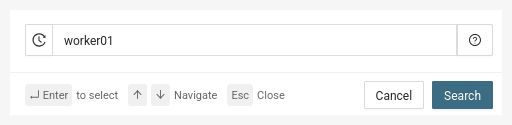
Quick search by name
- Click the magnifying glass icon in the upper right corner
- Enter the searched text
- Press Enter or click the Search button
 |
Search by other properties
- Click the magnifying glass icon in the upper right corner
- Click the search bar and select the desired property
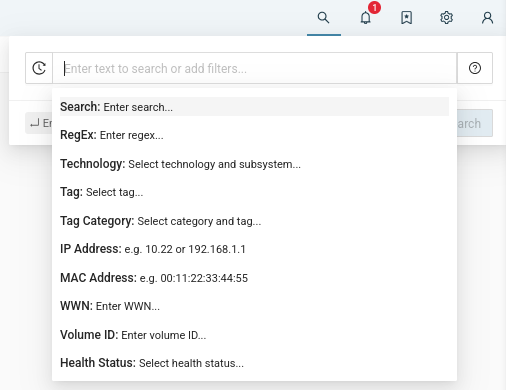 |
Property selection also supports keyboard input and autocomplete based on the characters you type.
Search by multiple properties
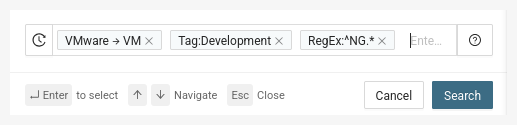
You can also search by several properties at once.
The search results will contain the intersection of results based on all specified properties.
For example:
Find all VMware VMs that start with "NG" and have the tag "development"
 |
We currently support searching by
- Regular Expression
- IP Address
- WWN
- MAC Addresses
- Tags and Tag Categories
- Technology (device type)
- Volume ID
- Health Status
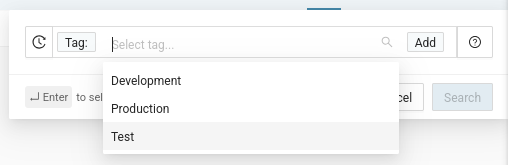
Others offer a list of options to choose from.
In this case, autocomplete (searching by typed characters) works.
 |
Original Search
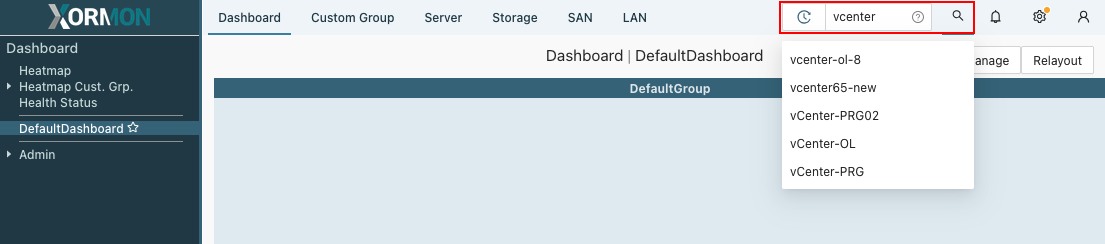
Click the qustionmark symbol near the top right corner of the screen, type in the search string and press enter.
The system will suggest possible results.
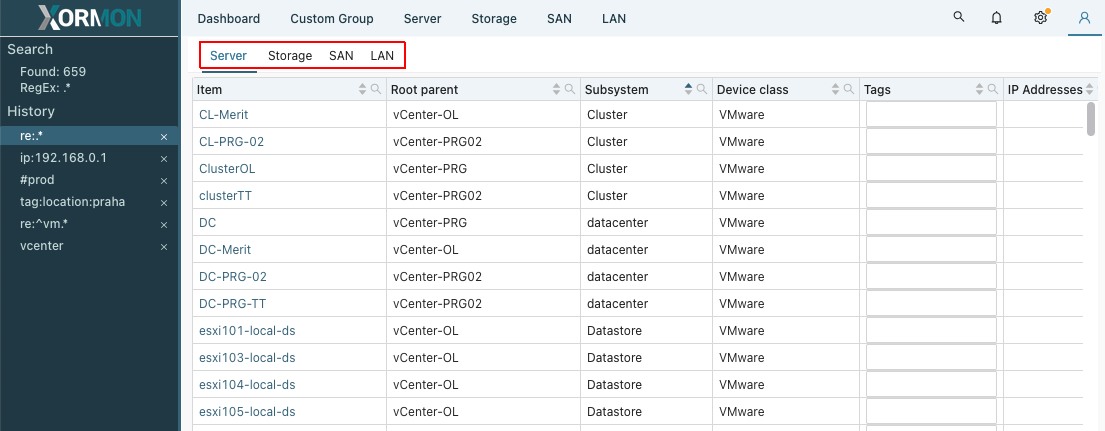
Search results are divided into tabs by item class.
You can search for items using text, regular expression, custom tags and IP addresses.
-
Text
Start typing characters into the serach field.
The tool will suggest items matching the characters you type in.
You can either select one of the sugested items directly, or press Enter to see a list of all items matching your text input. -
Regular expression
You can use regular expressions for more complex and powerful search queries.
Use the prefix "re:" before the search string.
Example: search for all item names starting with "vm": "re:^vm.*"
See Regular expressions for some tips.
-
Custom tags and tag categories
Search for items marked with custom tags.
Use the prefix "tag:" or "#" before the search string.
The system will suggest available tags and tag categories as you strat typing.
Examples
- search for items with tag "prod": "tag:prod" or "#prod"
- search for items with tag "location:us": "tag:location:us" or "#location:us"
- search for all items with tag category "location": "tag:location:*" or "#location:*"
-
IP address
Search for items with a specific IP address.
Use the prefix "ip:" before the search string.
Example: "ip:192.168.1.27" -
SAN port WWN address
Search for items with a specific port WWN address.
Use the prefix "wwn:" before the search string.
Example: "wwn:10000090fa108945" -
LAN port MAC address
Search for items with a specific port MAC address.
Use the prefix "mac:" before the search string.
Example: "mac:00:50:56:8c:e8:f8" -
Storage Volume ID
Search for items with a specific volume ID.
Use the prefix "volid:" before the search string.
Example: "volid:6005076300808AE5100000000000001A"
 |
 |
Search history
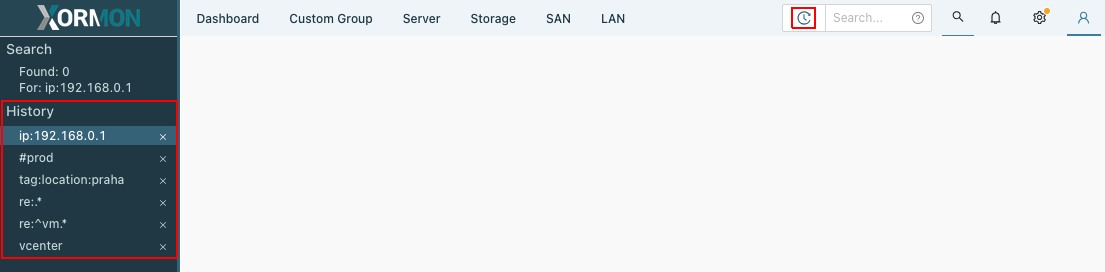
Open the search history by clicking on the "time" icon to the left of the search input box.You can view the search history in the left menu of each search result.
Here you can repeat previous searches or remove them from the history.
The length of the history can be set in the user profile.
 |