IBM Power Systems
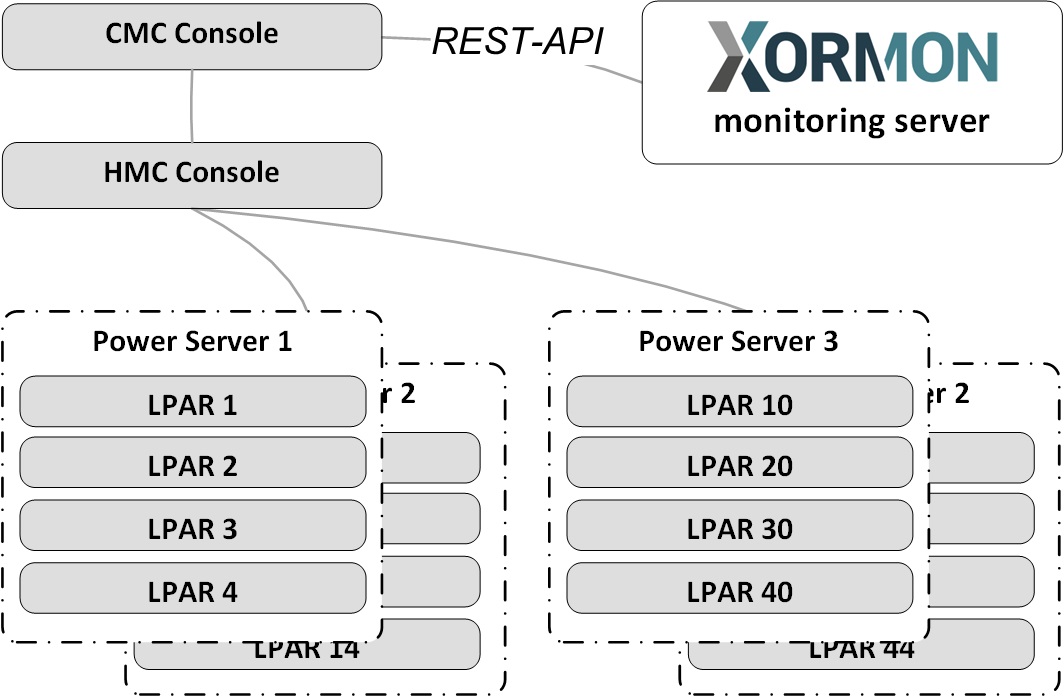
XorMon, open source under GPL v3, monitors IBM Power Systems servers through read-only access to the HMC REST API, and Power Enterprise Pools 2.0 through the REST API of the IBM Cloud Management Console (CMC). It graphs CPU, shared processor pools, memory allocation and adapters of these servers and their AIX, IBM i, VIOS and Linux on Power LPARs.
What does XorMon monitor on IBM Power Systems servers through the HMC?
Through the HMC REST API, XorMon monitors IBM Power Systems servers, CPU pools, shared processor pools and LPARs running AIX, VIOS, IBM i and Linux on Power.
The HMC (Hardware Management Console) is an appliance used to configure and control IBM Power Systems servers and their partitions. For the HMC, the feature matrix lists utilisation of physical adapters (SR-IOV, FC, Eth, SAS), LPAR and server CPU usage aggregated, memory allocation aggregated per server and TOP LPARs per CPU usage. OS agents in AIX, VIOS and Linux on Power LPARs add operating system metrics such as CPU sys, user and IO wait, paging and filesystem usage.
Sources: IBM Power Systems monitoring, updated 2026-11-07, Feature matrix, IBM Power Systems tab, and HMC glossary entry, updated 2026-11-05.
How does XorMon connect to the HMC REST API, and on which port?
XorMon uses read-only HMC REST API access, from the XorMon host to all HMCs on port 443 TCP; older HMCs might require port 12443 TCP.
IBM Power Systems data from the HMC REST API is sampled every minute and collected every 20 minutes. The XorMon deployment table lists the HMC REST API with read-only access, from XorMon to the HMC on port 443.
Sources: installation steps below, updated 2026-11-11, Data frequency, updated 2026-05-04, and XorMon deployment.
Does XorMon support IBM Cloud Management Console (CMC)?
Yes. XorMon supports the IBM Cloud Management Console (CMC), from which it reads Power Enterprise Pools 2.0 (PEP 2.0) data through the REST API, without HMC data.
For the CMC, the feature matrix lists shared processor pools, servers CPU usage aggregated, historical reporting and Resource Groups. The Power Enterprise Pools 2.0 page shows configuration, CPU Total and CPU Pool graphs.
Sources: installation steps below, updated 2026-11-11, Power Enterprise Pools 2.0, updated 2026-06-19, and Feature matrix, IBM Power Systems tab.
How does XorMon monitor IBM Power Enterprise Pools 2.0 through the CMC?
XorMon obtains Power Enterprise Pools 2.0 (PEP 2.0) data from the REST API of the CMC console, and this does not require HMC data.
All servers in PEP 2.0 must be tagged in the CMC: metrics of untagged servers are not approachable through the CMC Public API.
Sources: installation steps below, updated 2026-11-11, Power Enterprise Pools 2.0, updated 2026-06-19, and Feature matrix, IBM Power Systems tab.
Key points
- Monitors IBM Power Systems servers, CPU pools, shared processor pools and AIX, IBM i, VIOS and Linux on Power LPARs through the HMC REST API.
- Reads Power Enterprise Pools 2.0 from the REST API of the IBM Cloud Management Console (CMC), without HMC data.
- All servers in PEP 2.0 must be tagged in the CMC.
- HMC data is sampled every minute and collected every 20 minutes.
- Open source license (GPL v3).
Installation and configuration for IBM Power Systems
This does not require HMC data.
 |
Prerequisites
- Open port https (443) from LPAR2RRD server to the CMC console, TCP (or use a proxy)
- CMC Tagging: servers
Tags: all servers in PEP 2.0 must be tagged
Metrics of untagged servers are not approachable.
Connection of untagged server and pool is not approachable by CMC Public API.
Documentation: Manage tags
CMC UI ➡ Inventory
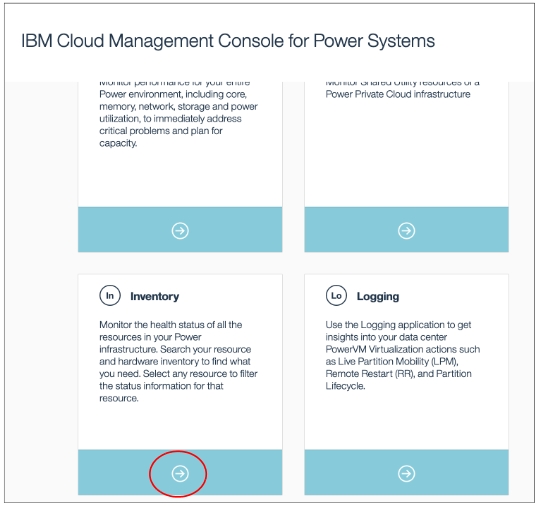
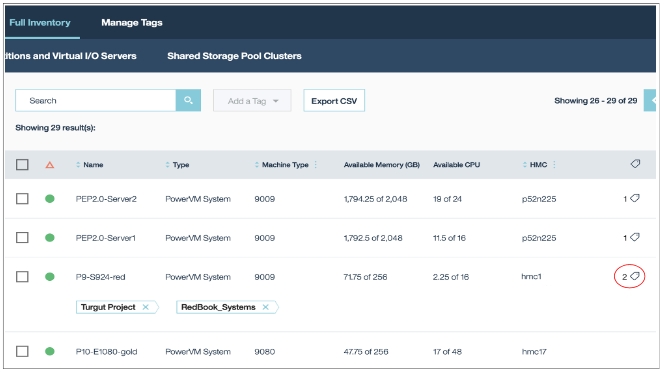
Full Inventory ➡ Managed Systems and HMCs ➡ Select the entries and click "Add a Tag"
To show information about attached tags use the icon on the right:
- Add new CMC into XorMon
UI ➡ Settings icon ➡ Device ➡ Server Virtualization ➡ IBM Power Systems ➡ CMC tab ➡ New
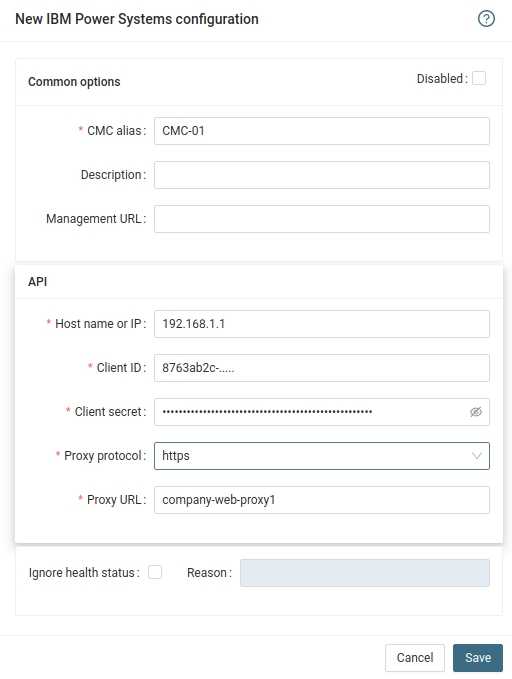
Base URL, Client ID, and Client Secret can be found in the IBM CMC Settings ➡ Public API
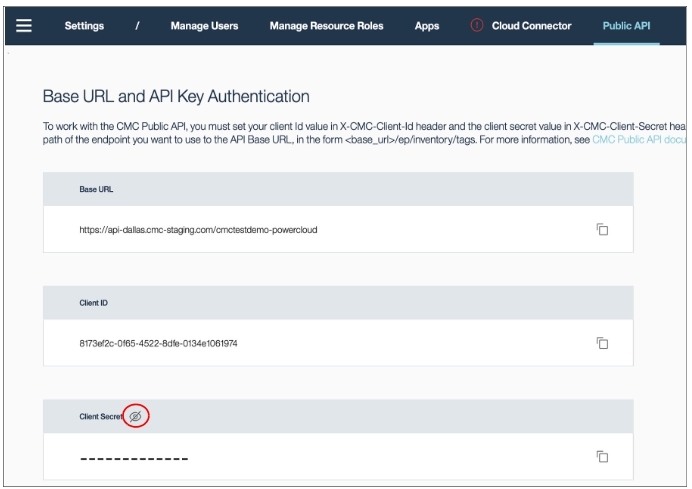
IBM CMC API docu
- Wait an hour after the CMC configuration, then reload the browser, you should see new CMC in the menu tree
It is supported on HMC v8+, use LPAR2RRD via CLI access for older HMCs
-
Allow access from the XorMon host to all HMCs on port 443 TCP (older HMC might require port 12443 TCP)
-
Create xormon user on each HMC, read-only role, with password, set no password expiration
Use HMC local user account, not the domain one.
- Allow remote access via the web:
- HMC v10, v11: Menu ➡ User management ➡ User profiles ➡ xormon ➡ modify ➡ Properties ➡ Allow remote access via the web
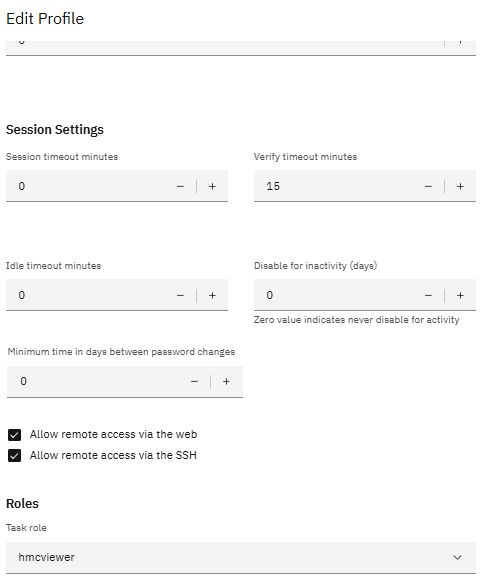
- HMC 9 and older: Menu ➡ Manage User Profiles and Access ➡ select xormon ➡ modify ➡ User properties ➡ Allow remote access via the web

- HMC v10, v11: Menu ➡ User management ➡ User profiles ➡ xormon ➡ modify ➡ Properties ➡ Allow remote access via the web
- Enable HMC LongTermMonitor. It is part of Performance Monitoring in HMC Workplace.
This performance monitoring can store up to 366 days of data. XorMon uses performance data only 30 minutes old so you can set the minimum number of days to store performance data (1 day).- HMC v10, v11: Menu ➡ Performance dashboard ➡ System dashboard ➡ Turn data collection on
-
HMC v9:
HMC Management ➡ Console Settings ➡ Change Performance Monitoring Settings ➡ All on
Note: in case of HMC v10, v11 you need to go into the "user settings", and switch to the old UI: Switch to old dashboard. After switching to the old UI, you’re able to navigate to the corresponding settings.
-
Setup on older HMC:
HMC Management ➡ Operations ➡ Change Performance Monitoring Settings ➡ All On

- Configure HMC access in the XorMon UI: Devices ➡ Server Virtualization ➡ IBM Power Systems ➡ Add

-
To access HMC v11+, use port 443. Port 12443 is no longer available, as it was on all older HMCs.
- Run "Test" for the HMC, it must show "OK"
-
Wait about 30 minutes, then refresh the web browser cache by Ctrl-F5
- Troubleshooting
- HMC v10, v11: Menu ➡ Performance dashboard ➡ System dashboard ➡ Turn data collection on
Last updated: