Windows, Hyper-V monitoring
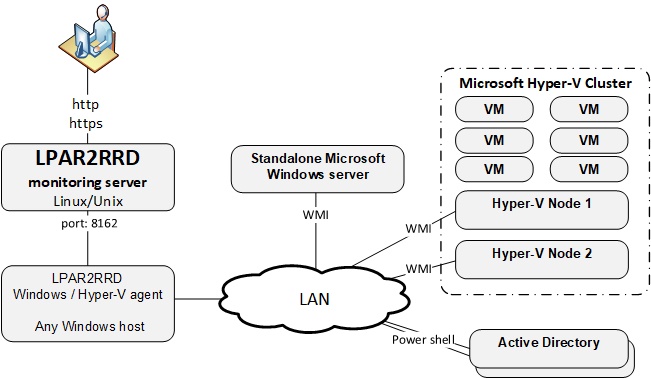
XorMon is able to monitor stand-alone MS Windows servers and MS Hyper-V performance metrics (hosts and VMs).
The agent monitoring even Storage Spaces Direct(S2D).
Implementation is done through single Windows OS agent running on any Windows host in the Windows domain.
This OS agent gets all required configuration from the AD and performance data of monitored hosts through WMI.
It passes such data to XorMon server where data is saved and presented.
Is used LPAR2RRD Windows OS agent which works everywhere where is available PowerShell 3 and higher
It does not directly depends on the Windows version, if you are able to upgrade PowerShell to 3.0+ on older machines then it will work.
Installation summary
- Allow TCP connection initiated from Windows LPAR2RRD Hyper-V agent server to XorMon server on port 8162
- PowerShell version 3 and higher only is supported on Windows hosts
User creation
- Create the user in the AD with membership in these groups:
- Event Log Readers
- Hyper-V Administrators
- Performance Log Users
- Performance Monitor Users
- Set rights in GPO and AD using this manual
- Give local admin rights to the the user on the Win server where LPAR2RRD Hyper-V agent will be running.
Add him into Domain Users group.
- Assign read-only rights for monitored Hyper-V clusters to the user
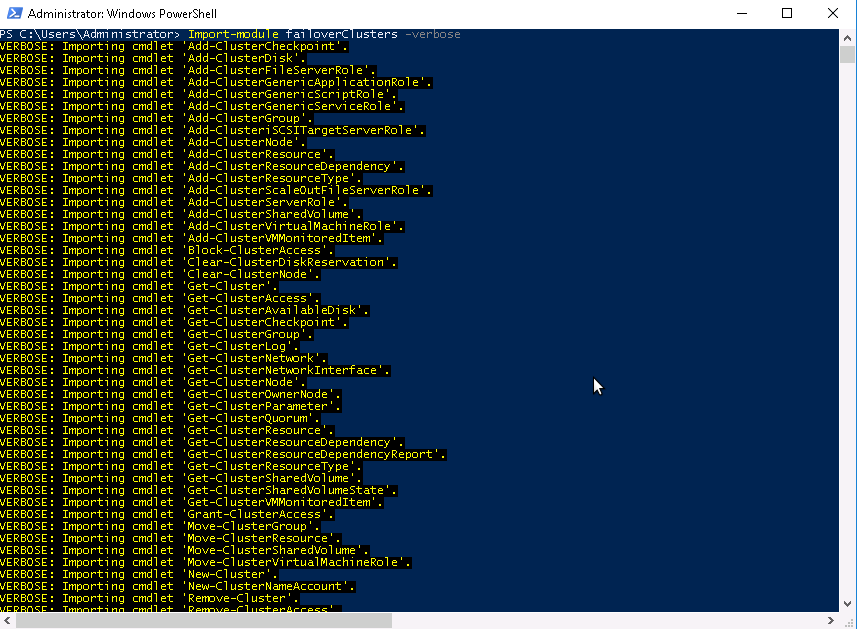

OS agent installation
- Unzip LPAR2RRD-Win-agent-8.0.0.zip
- Unblock these files by right clicking them and checking "Unblock"
- Setup.vbs
- Configuration.vbs
- LPAR2RRD-agent.ps1
- LPAR2RRD-agent-Configuration.ps1
- LPAR2RRD-agent-Installer.ps1
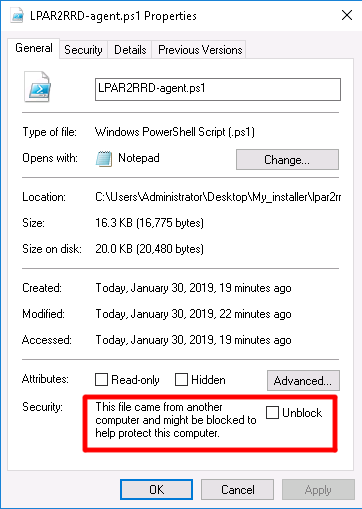
When 'Unblock" does not help and installation does not start (PowerShell install window immediatelly disapears)
you might need to Set-ExecutionPolicy to enable running powershell for current user.
That is a common case on Windows desktops.
- Run: Setup.vbs
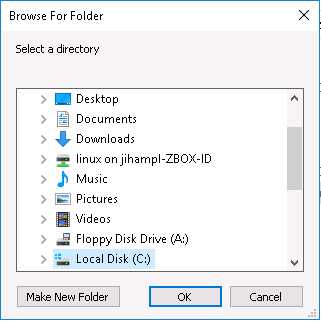
- Select installation directory
Note that 'C:\Program Files\<whatever...>\' does not work on all Windows (especially Desktops) due to some permission issue, files are not copied there, an use alternative path
- Put hostname of the XorMon server
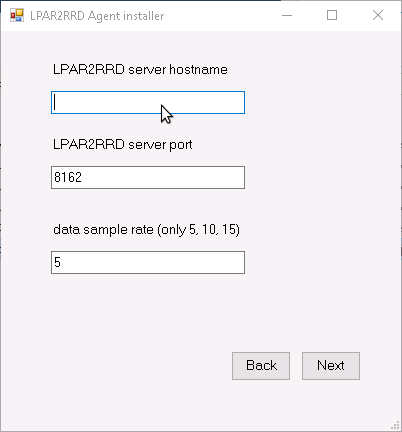
- Test connection to the XorMon server
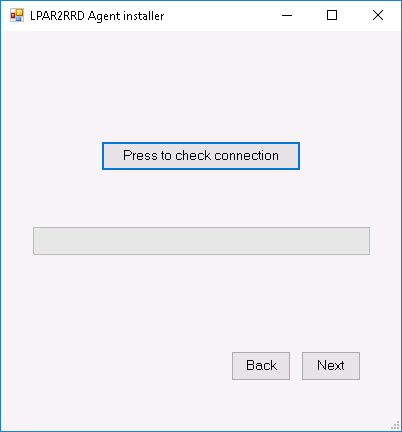
- Put user which will run LPAR2RRD OS agent on this machine
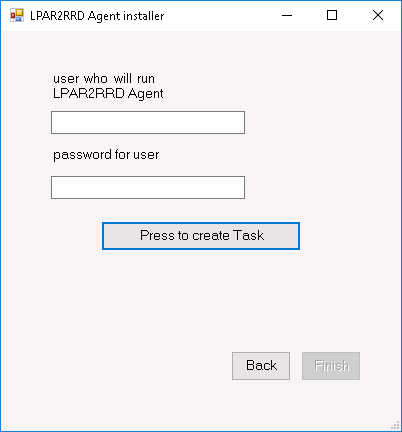
- Select monitored mode
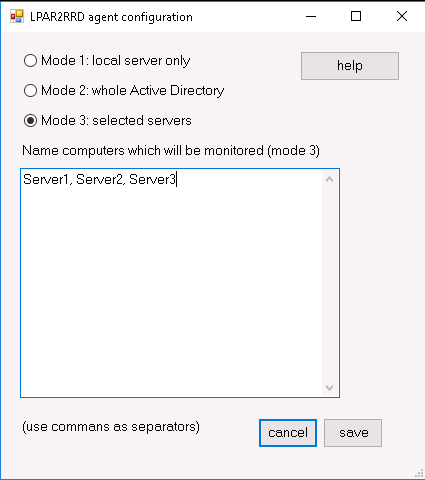 In case of a cluster: add there cluster name and names of all nodes as well like: cluster1,node1,node2,cluster2,node...
 - leave it in default mode and monitor just the server where it is installed
- monitor all visible servers from AD
- monitor only specific servers (recommended), added into cfg file
for monitoring of cluster - add its name to servers/nodes too like: cluster1,node1,node2,cluster2,node... - Wait about 30 minutes, then you should see it in your XorMon UI under 'Server ➡ Windows' folder in the main menu
Monitored modes
-
The agent can run in these modes:
Troubleshooting