DataCore monitoring
Storage connectivity
-
You can use 2 ways of setup. DataCore REST API is installed
- on the proxy Windows machine
- on a node of the storage
-
Download and install DataCore REST API on whatever Windows Server 2012+ or DataCore node.
You can download it from DataCore download page.
Installation requires Windows reboot.
Use REST API 1.07 for DataCore 10.0 PSP7 and newer.
Use REST API 1.06 for olders.
- Storage provide data through HTTP (port 80) by default.
You might change that to HTTPS as per following vendor manual.
-
Allow access from the XorMon host to the DataCore storage on port 80 (http), use 443 in case of HTTPS.
-
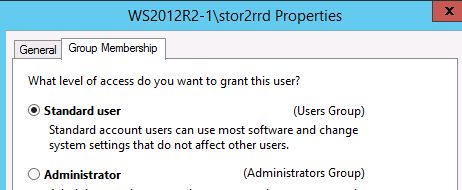
Create user xormon (bellow examples use stor2rrd user) in Windows hosted server on 1 DataCore node
-
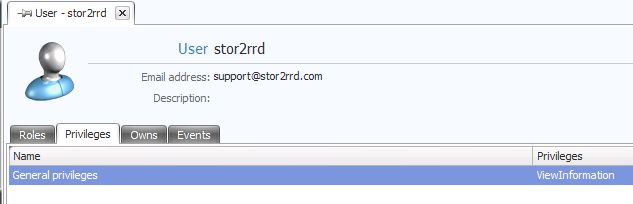
Assign that user on the storage role View
- When you configure all and you see big data gaps in graphs then you have to adjust RequestExpirationTime especially on DataCore SANsymphony 10, PSP 11, Update 1 and newer.
Open "C:\Program Files\DataCore\Rest\Web.config" file and chang the sixth line:
From: <add key="RequestExpirationTime" value="30"/>
To: <add key="RequestExpirationTime" value="1800"/>
You do not have to restart the DataCore node
XorMon storage configuration
-
Add storage into configuration from the UI:
XorMon UI ➡ Settings icon ➡ Device ➡ Storage ➡ New ➡ Vendor:device ➡ DataCore
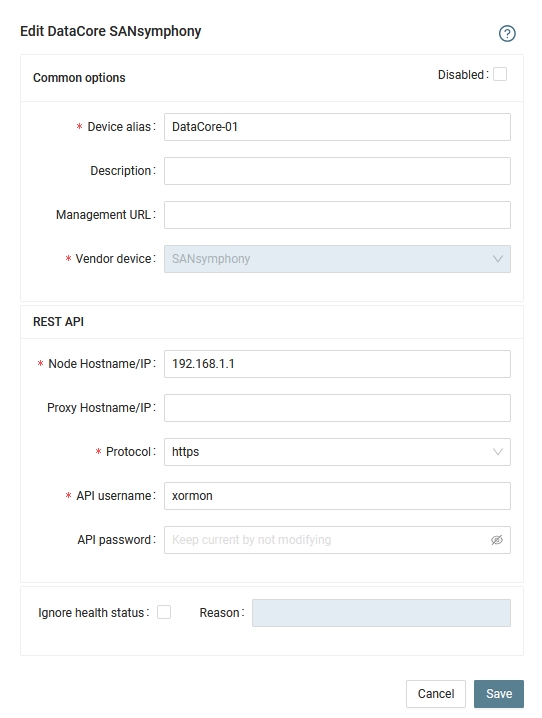
- Run "Test" for configured storage device, it must show "OK"
-
Wait about 1 hour, then reload the web browser, you should see it in XorMon UI
Last updated: