Huawei OceanStor, Dorado monitoring
XorMon, open source under GPL v3, monitors Huawei OceanStor V3 and V5, OceanStor Dorado, the A series, OceanProtect, OceanDisk and OceanStor Pacific through the REST API that the storage provides natively, on port 8088 with a read-only user. It graphs IO, data throughput and latency per pool, volume, host, port and node, and capacity per pool.
Which Huawei OceanStor and Dorado models does XorMon monitor?
XorMon monitors Huawei OceanStor V3 and V5, OceanStor Dorado V3, Dorado All-Flash and Dorado Hybrid-Flash, the OceanStor A series, OceanProtect and OceanDisk, plus OceanStor Pacific and Pacific NAS.
OceanStor Pacific covers block storage only, while object, file and HDFS are monitored through the separate Pacific NAS device type. OceanStor 9000 V5 Scale-Out NAS is supported by STOR2RRD, a legacy tool. XorMon is its full-stack successor, and all new development goes into XorMon.
Sources: installation tabs below, updated 2026-11-07, and Storage monitoring, updated 2026-11-06.
Which OceanStor and Dorado metrics does XorMon collect?
On OceanStor and Dorado, XorMon graphs IO, data throughput and latency per pool, volume, host, drive, port and node, with cache hit and queue per volume, and CPU, cache usage and temperature per node.
Besides IOPS, throughput and latency, pools have capacity and block size, and NFS and SMB operations, data and latency are graphed per pool, node and Ethernet port. OceanStor and Dorado provide real per-host performance statistics, rather than host data aggregated from volumes. Their copy services are monitored too, with alerts when anything goes wrong.
Sources: Feature matrix, Huawei tab, Host data, updated 2026-05-04, and Copy Services monitoring, updated 2026-10-13.
How does XorMon connect to Huawei OceanStor and Dorado arrays?
XorMon reads all data through the REST API that the storage provides natively, from the XorMon host to the array on port 8088, with a read-only user.
The REST API returns the performance statistics that the storage collects itself. OceanStor Pacific and Pacific NAS are read the same way, through their own REST API on port 8088.
Sources: installation tabs below, updated 2026-11-07.
How does XorMon track OceanStor and Dorado capacity and history?
XorMon graphs capacity per pool for OceanStor, Dorado and Pacific, captures capacity data once an hour and keeps it for up to 3 years as daily averages.
Hourly capacity values stay available for 6 months and 6 hour averages for 1 year, a history usable for capacity planning. The feature matrix marks health status and performance and hardware event alerting for OceanStor and Dorado, and storage snapshots are monitored on OceanStor and OceanStor Pacific.
Sources: Data retention, updated 2026-05-04, Alerting, updated 2026-10-13, Storage snapshot, updated 2026-10-19, and Feature matrix.
Key points
- Monitors Huawei OceanStor V3 and V5, Dorado, the A series, OceanProtect, OceanDisk and OceanStor Pacific through the native REST API on port 8088.
- IO, data throughput and latency per pool, volume, host, drive, port and node; capacity per pool.
- Read-only user on the storage; all data comes from the storage REST API.
- Real per-host statistics, copy services, health status, performance and hardware event alerts.
- Free open source license (GPL v3).
Installation and configuration for Huawei OceanStor, Dorado and Pacific
- OceanStor / Dorado / OceanProtect / OceanDisk / A series
- OceanStor 9000 V5 Scale-Out NAS
- OceanStor Pacific
- OceanStor Pacific NAS
Do you want to let us know your priorities? Vote for your missing features and device support. More votes, bigger priority for us.
List of not supported technologies yet
The product uses Huawei OceanStor Pacific REST API interface natively provided by the storage to get all necessary data.
Supported is only the block storage, no object, file, and HDFS.
Storage connectivity
-
Allow access from the XorMon host to the Huawei OceanStor Pacific storage on ports 8088.
-
Create user xormon on the storage with read-only role.
To activate the account you have to log in to the XorMon UI with stor2rrd credentials and change password.
XorMon storage configuration
-
Add storage into configuration from the UI:
XorMon UI ➡ Settings icon ➡ Device ➡ Storage ➡ New ➡ Vendor:device ➡ Huawei OceanStor Pacific
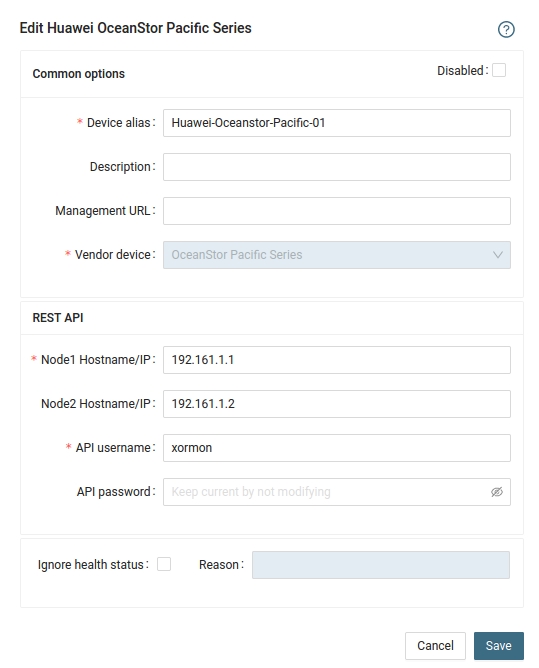
- Run "Test" for configured storage device, it must show "OK"
-
Wait about 1 hour, then reload the web browser, you should see it in XorMon UI
The product uses Huawei OceanStor Pacific REST API interface natively provided by the storage to get all necessary data.
Supported is object, file, and HDFS.
Storage connectivity
-
Allow access from the XorMon host to the Huawei OceanStor Pacific storage on port 8088.
-
Create user xormon on the storage with read-only role.
To activate the account you have to log in to the storage UI with XorMon credentials and change password.
XorMon storage configuration
-
Add storage into configuration from the UI:
XorMon UI ➡ Settings icon ➡ Device ➡ Storage ➡ New ➡ Vendor:device ➡ Huawei OceanStor Pacific NAS
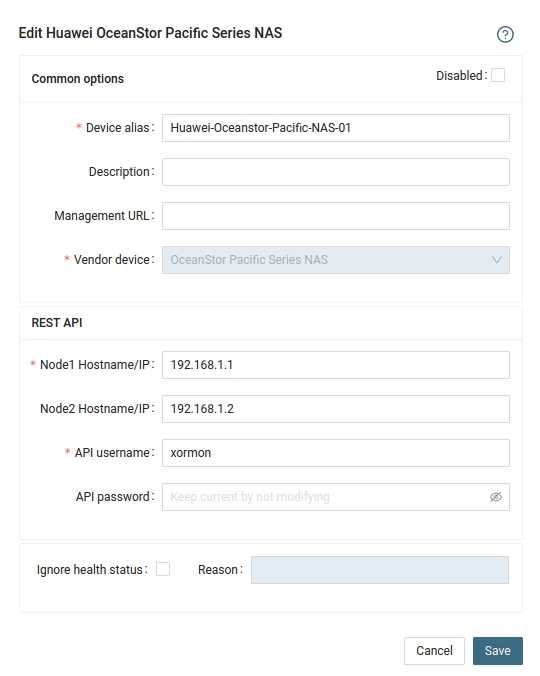
- Run "Test" for configured storage device, it must show "OK"
-
Wait about 1 hour, then reload the web browser, you should see it in XorMon UI
| Huawei OceanStor V3 series | V3R3C10 |
| Huawei OceanStor V5 series | V500R007 |
| Huawei OceanStor Dorado V3 Storage | V3R3C10 |
| Huawei OceanStor Dorado All-Flash Storage | 6.0.0,V700 |
| Huawei OceanStor Dorado Hybrid-Flash Storage | 6.1.3,V700 |
| Huawei OceanStor A series | V700 |
Storage connectivity
-
Allow access from the XorMon host to the Huawei OceanStor / Dorado storage on ports 8088.
-
Create user xormon on the storage with read-only role.
To activate the account you have to log in to the storage UI with xormon credentials and change password.
-
Make sure that performance monitoring collection is enabled on the storage and historical collection is set to 300 secs. It must be set to 300 seconds to work correctly!
New storage firmwares have that at : Monitor ➡ SystemReporter ➡ (pop up window) ➡ System ➡ System Configuration ➡ Registration and Configuration ➡ Storage name ➡ Collection policy ➡ Historical monitoring
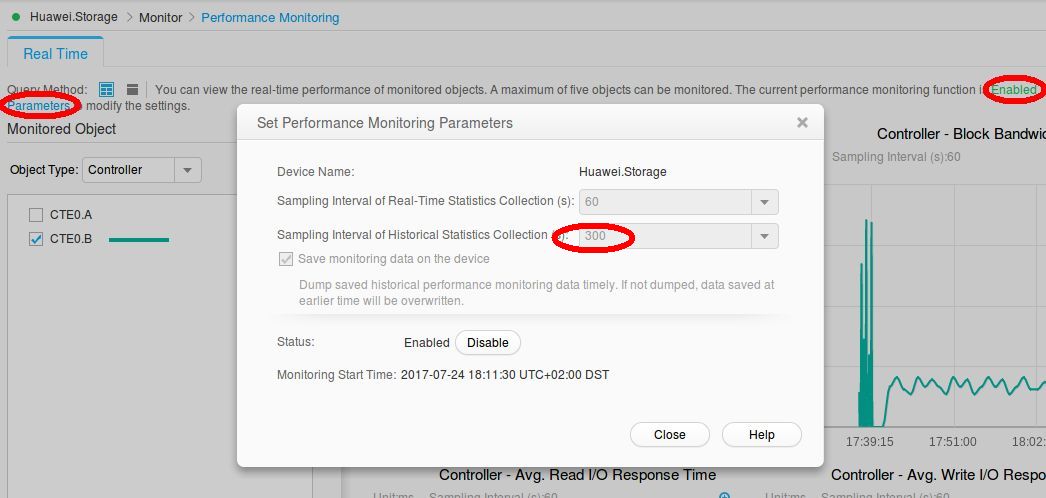
Some models do not allow such change from the storage UI, use storage CLI instead:admin:/>change performance statistic_enabled enabled=no admin:/>change performance strategy archive_time=300s admin:/>change performance statistic_enabled enabled=yes admin:/>show performance strategy Sampling Interval(s) : 5 Archive Enabled : Yes Archive Time(s) : 300 Auto Stop : No Duration(days) : --
XorMon storage configuration
-
Add storage into configuration from the UI:
XorMon UI: Settings icon ➡ Device ➡ Storage ➡ New ➡ Vendor:device ➡ Huawei OceanStor / Dorado
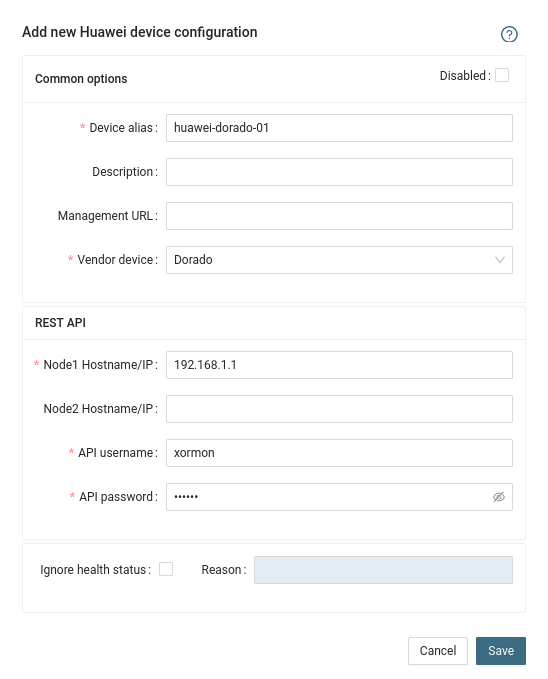
- Run "Test" for configured storage device, it must show "OK"
-
Wait about 1 hour, then reload the web browser, you should see it in XorMon UI
XorMon monitors storage from other vendors too: see storage performance monitoring for every supported system.
Dernière mise à jour :