Dot Hill/Seagate AssuredSAN monitoring
XorMon, open source under GPL v3, monitors Dot Hill and Seagate AssuredSAN storage. It uses the SMI-S and WBI API interfaces natively provided by the storage, and graphs capacity, IO, data throughput, latency, block size and cache hit per pool, plus volume, RAID group, drive, port, host and node statistics, health status and alerting.
Does XorMon support Dot Hill storage?
Yes: XorMon supports Dot Hill/Seagate AssuredSAN storage, listed among the supported storage systems on the storage monitoring page.
The feature matrix has a Dot Hill tab with one column, AssuredSAN. Seagate AssuredSAN is also among the storage types for which XorMon presents the storage snapshot configuration.
Sources: Storage monitoring, updated 2026-11-07, Feature matrix, Dot Hill tab, and Storage snapshot, updated 2026-10-19.
Which Dot Hill SAN storage metrics does XorMon monitor?
Per pool, XorMon graphs capacity, capacity tier, IO, data, latency, block size and cache hit; per volume, IO, data, block size and cache hit; per RAID group and per drive, IO, data and latency.
The Dot Hill tab of the feature matrix also lists IO, data and latency per port, IO and data per host, IO, data and cache hit per node, health status, and performance and hardware event alerting. In XorMon, event alerting sends an alert when a device turns red in the global health status dashboard, and a clear alert when it turns green again.
Sources: Feature matrix, Dot Hill tab, and Alerting, updated 2026-10-13.
Key points
- Monitors Dot Hill and Seagate AssuredSAN storage through the SMI-S and WBI API interfaces natively provided by the storage.
- Two access methods: WBI, or SMI-S with WBI; WBI is required on new models without SMI-S.
- Pool: capacity, capacity tier, IO, data, latency, block size and cache hit.
- Volume, RAID group, drive, port, host and node statistics, plus health status.
- Performance and hardware event alerts, open source license (GPL v3).
Installation and configuration for Dot Hill/Seagate AssuredSAN
SMI-S API is used for getting performance data.
WBI API for configuration data.
Note that new storage devices do not contain SMI-S API, therefore use WBI method instead only.
Storage connectivity
-
Allow access from the XorMon host to the storage on ports 80 (WBI) and 5988 (SMI-S).
If you use https and secure SMI-S then test ports 443 and 5989 instead.
If you use storage cmd line configuration like in examples below (you can use the storage UI instead) then port 22 (ssh) must be open.
- Make sure that secure SMI-S (port 5989) and WBI HTTPS (port 443) protocols are enabled on the storage
- CMD line:
If secure SMI-S or WBI HTTPS are not enabled:
$ ssh -l manage <storage_hostname>
# show protocols
  Service and Security Protocols
  ------------------------------
  Web Browser Interface (HTTP): Enabled
  Secure Web Browser Interface (HTTPS): Enabled
  Command Line Interface (Telnet): Disabled
  Secure Command Line Interface (SSH): Enabled
  Storage Management Initiative Specification (SMI-S): Enabled
  Unsecure Storage Management Initiative Specification (SMI-S 5988): Disabled
  ...
# set protocols smis enabled
# set protocols https enabled
- UI:
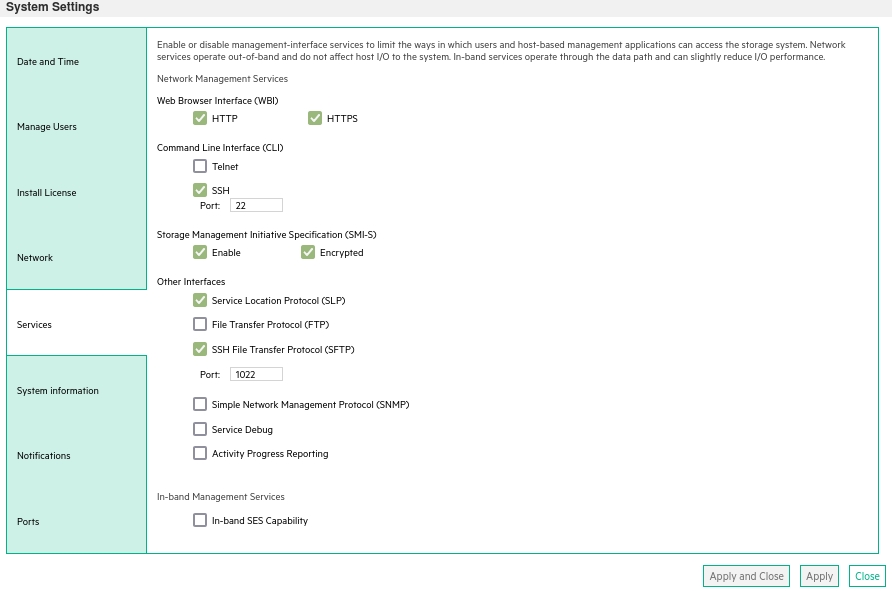
- CMD line:
-
Create user xormon on the storage with monitor and standard roles, allow SMI-S and WBI.
- CMD line method:
Adjust password to your preferred one from used Test1234.$ ssh -l manage <storage_hostname> # create user interfaces smis,wbi locale English password Test1234 roles monitor,standard xormon
-
UI:
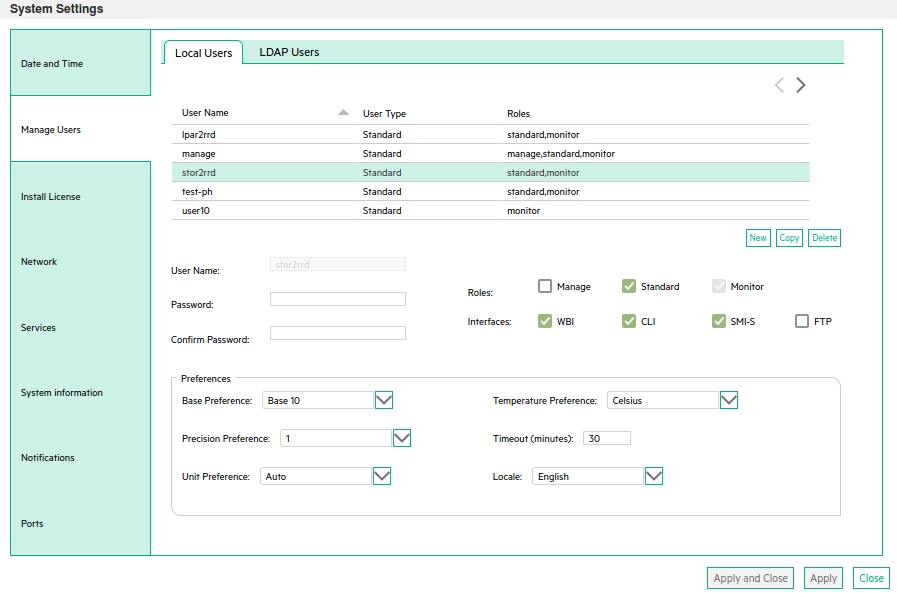
(example uses 'stor2rrd' user but use 'xormon' preferable)
- CMD line method:
XorMon storage configuration
-
Add storage into configuration from the UI:
XorMon UI:Settings icon ➡ Device ➡ Storage ➡ New ➡ Vendor:device ➡ Dot Hill AssuredSAN

If you set https in above storage properties then this must be enabled on the storage:$ ssh -l manage <storage_hostname> # show protocols ... Secure Web Browser Interface (HTTPS): Enabled Storage Management Initiative Specification (SMI-S): Enabled ...
If you use http then this:Web Browser Interface (HTTP): Enabled Unsecure Storage Management Initiative Specification (SMI-S 5988): Enabled
-
Do not use shell special characters like @:;#!?|$*[]\{}`"'& in the password, use rather .+-=_% instead.
- Run "Test" for configured storage device, it must show "OK"
-
Wait about 1 hour, then reload the web browser, you should see it in XorMon UI
WBI access must be used on new storage models which do not support SMI-S protocol.
Storage connectivity
-
Allow access from the XorMon host to the storage on ports 443.
- Make sure that secure and WBI HTTPS (port 443) protocol is enabled on the storage
- CMD line:
If secure WBI HTTPS is not enabled:
$ ssh -l manage <storage_hostname>
# show protocols
  Service and Security Protocols
  ------------------------------
  ...
  Secure Web Browser Interface (HTTPS): Enabled
  ...
# set protocols https enabled
- UI:
- CMD line:
-
Create user xormon on the storage with monitor and standard roles, allow WBI.
- CMD line method:
Adjust password to your preferred one from used Test1234.$ ssh -l manage <storage_hostname> # create user interfaces wbi locale English password Test1234 roles monitor,standard xormon
-
UI:
(example uses 'stor2rrd' user but use 'xormon' preferable)
- CMD line method:
XorMon storage configuration
-
Add storage into configuration from the UI:
XorMon UI: Settings icon ➡ Device ➡ Storage ➡ New ➡ Vendor:device ➡ DotHill: AssuredSAN
If you set https in above storage properties then this must be enabled on the storage:$ ssh -l manage <storage_hostname> # show protocols ... Secure Web Browser Interface (HTTPS): Enabled ...
If you use http then this:Web Browser Interface (HTTP): Enabled
- Run "Test" for configured storage device, it must show "OK"
-
Wait about 1 hour, then reload the web browser, you should see it in XorMon UI
The full list of supported storage systems is on one page.
Dernière mise à jour :