FreeNAS, TrueNAS monitoring
XorMon uses FreeNAS / TrueNAS CORE REST API interface natively provided by the storage to get all necessary data.
Supported are FreeNAS / TrueNAS CORE firmwares 11.2+ except version 24.10 (it has a bug in the API).
Supported are FreeNAS / TrueNAS CORE firmwares 11.2+ except version 24.10 (it has a bug in the API).
Storage connectivity
-
Enable access from the XorMon host to the FreeNAS storage on port 443 (80 in case http)
- Storage user: root account must be used, unfortunately only root can connect FreeNAS REST API.
XorMon storage configuration
- Add storage into configuration from the UI:
Settings icon -> Device -> Storage -> New -> Vendor:device -> TrueNAS Core
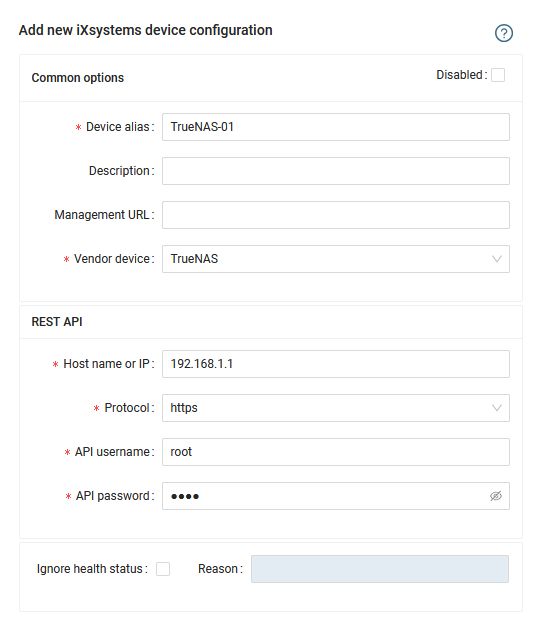
- Run "Test" for configured storage device, it must show "OK"
-
Wait about 1 hour, then reload the web browser, you should see it in XorMon UI
When configuring TrueNAS SCALE in XorMon, you need to select the API Type.
TrueNAS SCALE provides two interfaces for collecting configuration and performance data: REST API and WebSocket API.
Starting with TrueNAS SCALE 25.04, the new versioned JSON-RPC 2.0 WebSocket API is available and REST API is deprecated.
Versions 25.04 and 25.10 therefore represent a transition period where both REST and the new WebSocket API can be used.
Starting with TrueNAS 26, REST API has been removed and the WebSocket API must be used.
API availability depends on the TrueNAS SCALE version:
For simplicity, you can also select "Auto (detect by version)".
TrueNAS SCALE provides two interfaces for collecting configuration and performance data: REST API and WebSocket API.
Starting with TrueNAS SCALE 25.04, the new versioned JSON-RPC 2.0 WebSocket API is available and REST API is deprecated.
Versions 25.04 and 25.10 therefore represent a transition period where both REST and the new WebSocket API can be used.
Starting with TrueNAS 26, REST API has been removed and the WebSocket API must be used.
API availability depends on the TrueNAS SCALE version:
| TrueNAS SCALE | REST API | JSON-RPC 2.0 WebSocket API |
|---|---|---|
| ≤ 24.10 | Supported | No |
| 25.04 | Supported (deprecated) | Supported |
| 25.10 | Supported (deprecated) | Supported |
| ≥ 26 | No | Supported |
For simplicity, you can also select "Auto (detect by version)".
Storage connectivity
-
Enable access from the XorMon host to the FreeNAS storage on port 443 (80 in case http)
- Storage user
truenas_admin account must be used, unfortunately.
The built-in ReadonlyAdmin role doesn't have access to all performance data we need to collect.
Optionally, you can create an API key for the user and use it instead of a password.
XorMon storage configuration
- Add storage into configuration from the UI:
Settings icon -> Device -> Storage -> New -> Vendor:device -> TrueNAS SCALE
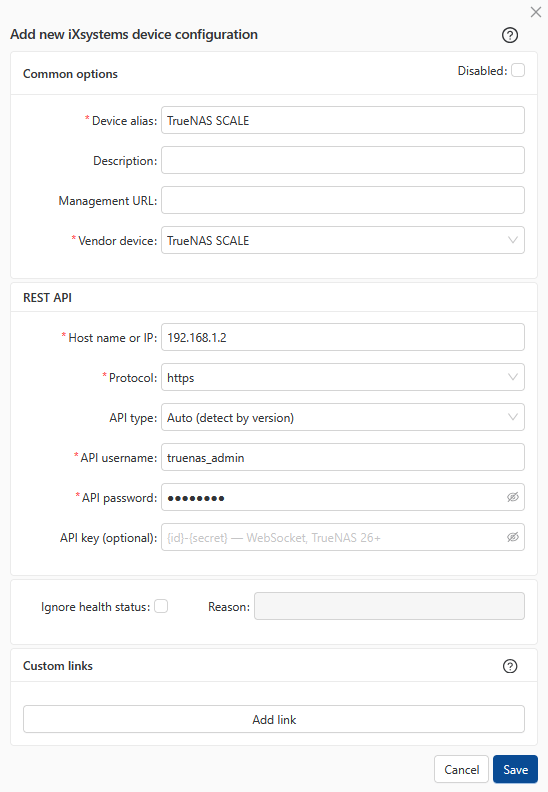
- Run "Test" for configured storage device, it must show "OK"
-
Wait about 1 hour, then reload the web browser, you should see it in XorMon UI