Qumulo monitoring
XorMon, open source under GPL v3, monitors Qumulo storage through the Qumulo API, which it uses to access performance statistics and configuration data. It graphs capacity, IO, data throughput, latency and block size per pool, plus port data throughput, with health status, and performance and hardware event alerting.
Which Qumulo storage metrics does XorMon monitor?
Per pool, XorMon graphs capacity, IO, data, latency and block size; per port, data.
The Qumulo tab of the feature matrix also lists health status, and performance and hardware event alerting. Qumulo is part of the list of supported storage systems on the storage monitoring page.
Sources: Feature matrix, Qumulo tab, and Storage monitoring, updated 2026-11-07.
How does XorMon connect to the Qumulo API?
XorMon connects from the XorMon host to the Qumulo storage on port 443 and uses the Qumulo API to access performance statistics and configuration data.
The API is accessible on static as well as floating IP addresses. The XorMon deployment table lists Qumulo with REST API as the protocol and 443 as the port.
Sources: installation steps below, updated 2026-11-11, and XorMon deployment.
Key points
- Monitors Qumulo storage through the Qumulo API: performance statistics and configuration data.
- Pool: capacity, IO, data, latency and block size; port: data.
- Health status, performance and hardware event alerts, open source license (GPL v3).
Installation and configuration for Qumulo
XorMon uses Qumulo API to access performance statistics and configuration data.Storage connectivity
-
Allow access from the XorMon host to the Qumulo storage on port 443.
API is accessible on Static as well as Floating IP addresses.
-
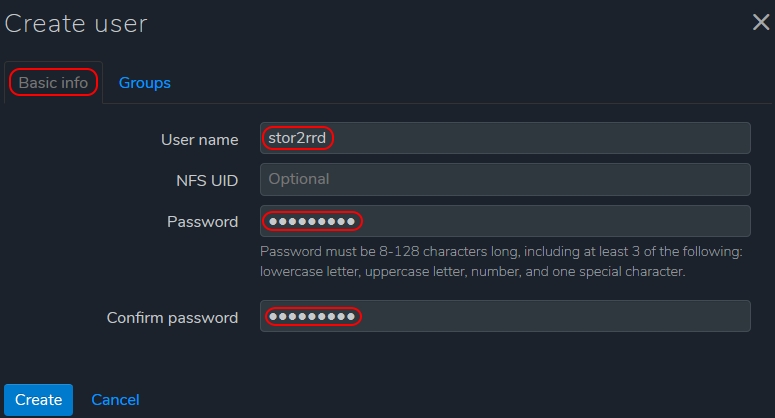
Create user for XorMon (example uses 'stor2rrd' user but use 'xormon' preferably)
Log in to Qumulo management GUI
Go to Cluster -> Local Users & Groups
Note: since Qumulo 3.0.5 and higher you have to manually assign Observers role to STOR2RRD user
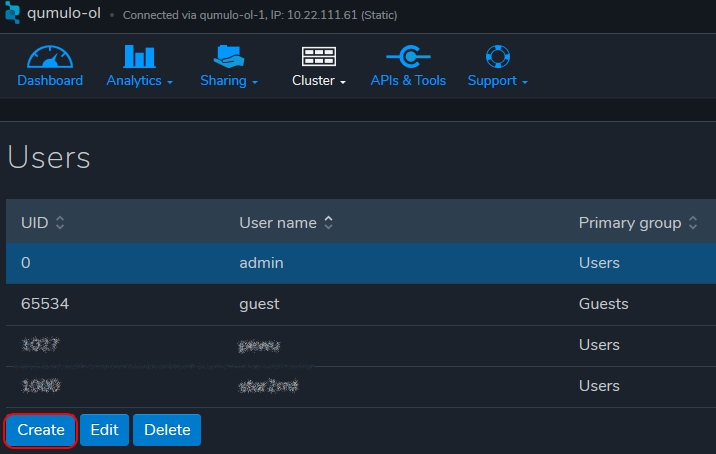
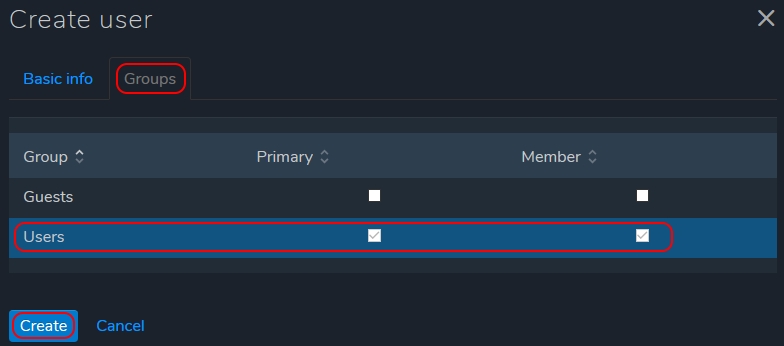
Create new user in group Users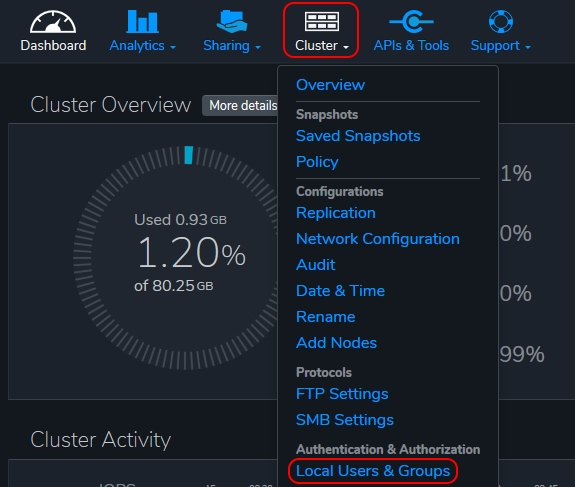
XorMon storage configuration
-
Add storage into configuration from the UI:
XorMon UI ➡ Settings icon ➡ Device ➡ Storage ➡ New ➡ Vendor:device ➡ Qumulo
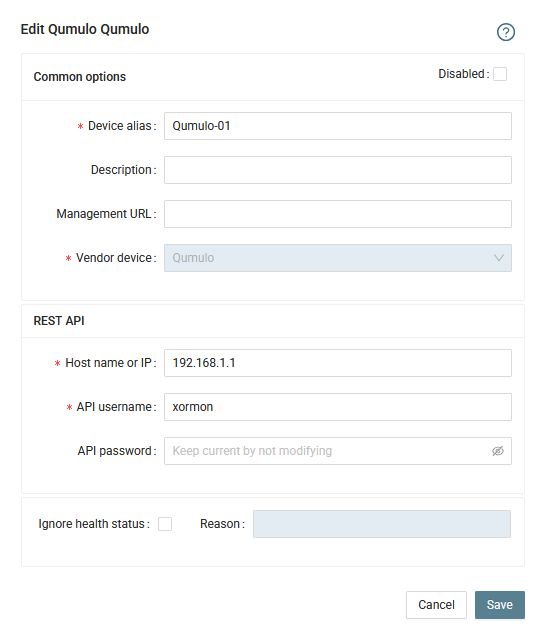
- Run "Test" for configured storage device, it must show "OK"
-
Wait about 1 hour, then reload the web browser, you should see it in XorMon UI
Other storage systems are covered as well: see storage monitoring in XorMon.
Dernière mise à jour :