Lenovo ThinkSystem monitoring
XorMon, open source under GPL v3, monitors Lenovo storage: Storage V Series, S Series and ThinkSystem DS, DE, DM and DG Series, plus Lenovo Ceph Storage Solutions. It reads the data through interfaces the storage provides natively (SSH, WBI, SMI-S or REST API) and graphs capacity, IO, data throughput and latency per pool, plus volume and host statistics.
Which Lenovo storage systems does XorMon monitor?
XorMon monitors Lenovo Storage V Series and S Series, ThinkSystem DS, DE, DM and DG Series, and Lenovo Ceph Storage Solutions, each with its own installation tab below.
Lenovo Ceph Storage Solutions are monitored with the Ceph installation procedure. Two access methods are supported by STOR2RRD, a legacy tool, and not by XorMon: ONTAPI for DM and DG Series, and the ThinkSystem Storage Manager CLI for DE Series. The storage monitoring page lists Lenovo next to NetApp, IBM, HPE, Dell EMC, Hitachi and Huawei.
Sources: installation tabs below, updated 2026-11-07, Storage monitoring, updated 2026-11-06, and Ceph monitoring, updated 2026-11-07.
Which Lenovo storage metrics does XorMon collect, down to the drives?
For V, S, DS and DE Series, the feature matrix marks capacity, IO, data, latency and block size per pool, and IO, data, block size and cache hit per volume. Drive IO, data and latency are marked for V, S and DS Series, not for DE Series.
Volume and host latency are marked for V and DE Series, and port IO and data throughput for V, S and DS Series. Health status is marked for S, DS and DE Series, and performance and hardware event alerting for all four. The matrix has no DM or DG Series column.
Sources: Feature matrix, Lenovo tab, and Alerting, updated 2026-10-13.
Does XorMon need ThinkSystem Storage Manager to monitor Lenovo storage?
No. XorMon reads Lenovo storage through interfaces the arrays provide: SSH for V Series, WBI or SMI-S for S and DS Series, and a REST API for DE, DM and DG Series.
On DE Series models that support it, the REST API provides more data metrics than the ThinkSystem Storage Manager for DE Series CLI and needs no third party software; the CLI method, which works on all models, is supported by STOR2RRD, a legacy tool. XorMon uses a dedicated xormon user on the storage, read-only on DM and DG Series, over port 22 for V Series, port 443 for WBI and for DM and DG Series, and port 8443 for DE Series.
Sources: installation tabs below, updated 2026-11-07.
Key points
- Covers Lenovo V Series, S Series, ThinkSystem DS, DE, DM and DG Series, and Lenovo Ceph Storage Solutions.
- Native interfaces: SSH for V Series, WBI or SMI-S for S and DS Series, REST API for DE, DM and DG Series.
- Pool and volume IO, data and block size on V, S, DS and DE Series; drive metrics on V, S and DS Series.
- No ThinkSystem Storage Manager needed: DE Series data comes from its REST API.
- Performance and hardware event alerting for V, S, DS and DE Series.
Installation and configuration for Lenovo storage
- V Series
- S Series
(WBI) - S Series
(SMI-S) - DS Series
(WBI) - DS Series
(SMI-S) - DE Series
- DM / DG Series
- DM / DG Series
ONTAPI - Ceph
Do you want to let us know your priorities? Vote for your missing features and device support. More votes, bigger priority for us.
List of not supported technologies yet
Prerequisites
-
Allow access from the XorMon host to the Lenovo V series storage on port 22 (ssh).
Storage access
There are 2 possibilities how to connect the storage:- Use user/password
Create new user "xormon" on the storage-
Storage firmware 8.3.1.2+: use "Monitor" role
$ ssh superuser@<storage control enclosure IP address> "svctask mkuser -name xormon -usergrp "Monitor"
-
Storage firmware 8+ up to 8.3.1.2: use "Restricted Administrator"
$ ssh superuser@<storage control enclosure IP address> "svctask mkuser -name xormon -usergrp RestrictedAdmin"
-
Older firmwares: use "Administrator" role.
It is the lowest role which allows retrieve of statistics data from the storage. Read this for explanation.
$ ssh superuser@<storage control enclosure IP address> "svctask mkuser -name xormon -usergrp Administrator"
-
Storage firmware 8.3.1.2+: use "Monitor" role
- SSH-keys
-
Create SSH-keys on XorMon host under xormon user if do not exist yet.
Type enter instead of passphrase# su - xormon $ ls -l ~/.ssh/id_rsa.pub $ ssh-keygen -t rsa -N "" Generating public/private rsa key pair. Enter file in which to save the key (/home/xormon/.ssh/id_rsa): ... $ ls -l ~/.ssh/id_rsa.pub -rw-r--r-- 1 xormon xormon 382 Jun 1 12:47 /home/xormon/.ssh/id_rsa.pub
You might need to add this into your SSH cfg in case of rsa using on OpenSSH 8.8+ especially in case ssh connection fails with: "no matching host key type found. Their offer: ssh-rsa"vi ~/.ssh/config Host * HostKeyAlgorithms=+ssh-rsa PubkeyAcceptedAlgorithms=+ssh-rsaNew storage devices might require stronger key, use this one instead of above 'RSA'$ ssh-keygen -t ecdsa -b 521 -N ""
- Copy ssh-key into the storage under storage superuser
In case of IBM Storwize V7000 Unified use one of "Control Enclosure" IPs (definitely not "File Module" IP).
Detailed description of IBM Storwize V7000 Unified.$ scp ~/.ssh/id_rsa.pub superuser@<storage control enclosure IP address>:/tmp/123tmp
-
Create new user "xormon" on the storage
-
Storage firmware 8.3.1.2+: use "Monitor" role
$ ssh superuser@<storage control enclosure IP address> "svctask mkuser -name xormon -usergrp Monitor -keyfile /tmp/123tmp"
-
Storage firmware 8+ up to 8.3.1.2: use "Restricted Administrator"
$ ssh superuser@<storage control enclosure IP address> "svctask mkuser -name xormon -usergrp RestrictedAdmin -keyfile /tmp/123tmp"
-
Older firmwares: use "Administrator" role.
It is the lowest role which allows retrieve of statistics data from the storage. Read this for explanation.
$ ssh superuser@<storage control enclosure IP address> "svctask mkuser -name xormon -usergrp Administrator -keyfile /tmp/123tmp"
-
Storage firmware 8.3.1.2+: use "Monitor" role
-
If xormon user already exists on the storage then assign him new ssh-keys:
$ ssh superuser@<storage control enclosure IP address> "svctask chuser -keyfile /tmp/123tmp xormon"
- Check if that works:
$ ssh -i ~/.ssh/id_rsa xormon@<storage control enclosure IP address> "svcinfo lssystem"
  id 00000100C0906BAA
  name SVC
  location local
  partnership
  bandwidth
  ...
-
Create SSH-keys on XorMon host under xormon user if do not exist yet.
XorMon storage configuration
-
Add storage into configuration from the UI:
XorMon UI: Settings icon ➡ Device ➡ Storage ➡ New ➡ Vendor:device ➡ Lenovo V series

- Run "Test" for configured storage device, it must show "OK"
-
Wait about 1 hour, then reload the web browser, you should see it in XorMon UI
SMI-S API is used for getting performance data.
WBI API for configuration data.
Note that new storage devices do not contain SMI-S API, therefore use WBI method instead only.
Storage connectivity
-
Allow access from the XorMon host to the storage on ports 80 (WBI) and 5988 (SMI-S).
If you use https and secure SMI-S then test ports 443 and 5989 instead.
If you use storage cmd line configuration like in examples below (you can use the storage UI instead) then port 22 (ssh) must be open.
- Make sure that secure SMI-S (port 5989) and WBI HTTPS (port 443) protocols are enabled on the storage
- CMD line:
If secure SMI-S or WBI HTTPS are not enabled:
$ ssh -l manage <storage_hostname>
# show protocols
  Service and Security Protocols
  ------------------------------
  Web Browser Interface (HTTP): Enabled
  Secure Web Browser Interface (HTTPS): Enabled
  Command Line Interface (Telnet): Disabled
  Secure Command Line Interface (SSH): Enabled
  Storage Management Initiative Specification (SMI-S): Enabled
  Unsecure Storage Management Initiative Specification (SMI-S 5988): Disabled
  ...
# set protocols smis enabled
# set protocols https enabled
- UI:
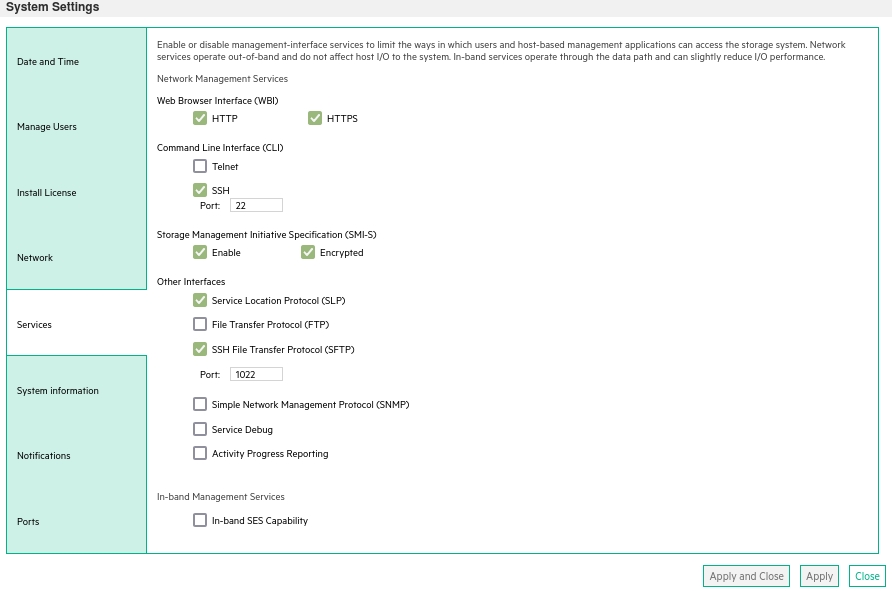
- CMD line:
-
Create user xormon on the storage with monitor and standard roles, allow SMI-S and WBI.
- CMD line method:
Adjust password to your preferred one from used Test1234.$ ssh -l manage <storage_hostname> # create user interfaces smis,wbi locale English password Test1234 roles monitor,standard xormon
-
UI:
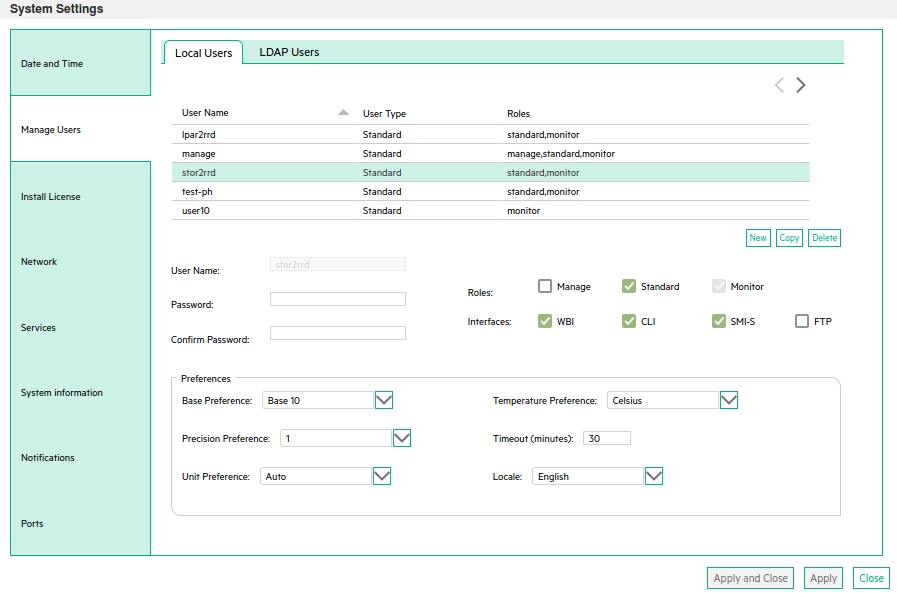
(example uses 'stor2rrd' user but use 'xormon' preferable)
- CMD line method:
XorMon storage configuration
-
Add storage into configuration from the UI:
XorMon UI: Settings icon ➡ Device ➡Storage ➡ New ➡ Vendor:device ➡ Lenovo S series ➡ SMI-S

If you set https in above storage properties then this must be enabled on the storage:$ ssh -l manage <storage_hostname> # show protocols ... Secure Web Browser Interface (HTTPS): Enabled Storage Management Initiative Specification (SMI-S): Enabled ...
If you use http then this:Web Browser Interface (HTTP): Enabled Unsecure Storage Management Initiative Specification (SMI-S 5988): Enabled
-
Do not use shell special characters like @#!?|$*[]\{}`"'& in the password, use rather ;:.+- instead.
- Run "Test" for configured storage device, it must show "OK"
-
Wait about 1 hour, then reload the web browser, you should see it in XorMon UI
SMI-S API is used for getting performance data.
WBI API for configuration data.
Note that new storage devices do not contain SMI-S API, therefore use WBI method instead only.
Storage connectivity
-
Allow access from the XorMon host to the storage on ports 80 (WBI) and 5988 (SMI-S).
If you use https and secure SMI-S then test ports 443 and 5989 instead.
If you use storage cmd line configuration like in examples below (you can use the storage UI instead) then port 22 (ssh) must be open.
- Make sure that secure SMI-S (port 5989) and WBI HTTPS (port 443) protocols are enabled on the storage
- CMD line:
If secure SMI-S or WBI HTTPS are not enabled:
$ ssh -l manage <storage_hostname>
# show protocols
  Service and Security Protocols
  ------------------------------
  Web Browser Interface (HTTP): Enabled
  Secure Web Browser Interface (HTTPS): Enabled
  Command Line Interface (Telnet): Disabled
  Secure Command Line Interface (SSH): Enabled
  Storage Management Initiative Specification (SMI-S): Enabled
  Unsecure Storage Management Initiative Specification (SMI-S 5988): Disabled
  ...
# set protocols smis enabled
# set protocols https enabled
- UI:
- CMD line:
-
Create user xormon on the storage with monitor and standard roles, allow SMI-S and WBI.
- CMD line method:
Adjust password to your preferred one from used Test1234.$ ssh -l manage <storage_hostname> # create user interfaces smis,wbi locale English password Test1234 roles monitor,standard xormon
-
UI:
(example uses 'stor2rrd' user but use 'xormon' preferable)
- CMD line method:
XorMon storage configuration
-
Add storage into configuration from the UI:
XorMon UI: Settings icon ➡ Device ➡Storage ➡ New ➡ Vendor:device ➡ Lenovo DS series ➡ SMI-S

If you set https in above storage properties then this must be enabled on the storage:$ ssh -l manage <storage_hostname> # show protocols ... Secure Web Browser Interface (HTTPS): Enabled Storage Management Initiative Specification (SMI-S): Enabled ...
If you use http then this:Web Browser Interface (HTTP): Enabled Unsecure Storage Management Initiative Specification (SMI-S 5988): Enabled
-
Do not use shell special characters like @#!?|$*[]\{}`"'& in the password, use rather ;:.+- instead.
- Run "Test" for configured storage device, it must show "OK"
-
Wait about 1 hour, then reload the web browser, you should see it in XorMon UI
- REST API use it on new models which support it, it provides more data metrics and is not necessary install 3rd part SW
- ThinkSystem Storage Manager for DE Series CLI works on all models
Configuration
-
Allow access from the XorMon host to the NetApp storage on port 8443.
- Storage user: either use pre-defined user 'monitor' which has monitor role or create 'xormon' under same role
Change its password if necessary through the storage UI.
XorMon storage configuration
- Add storage into configuration from the UI:
Settings icon ➡ Storage ➡ New ➡ Vendor:device ➡ Lenovi DE series

- Run "Test" for configured storage device, it must show "OK"
-
Wait about 1 hour, then reload the web browser, you should see it in XorMon UI
WBI access must be used on new storage models which do not support SMI-S protocol.
Storage connectivity
-
Allow access from the XorMon host to the storage on ports 443.
- Make sure that secure and WBI HTTPS (port 443) protocol is enabled on the storage
- CMD line:
If secure WBI HTTPS is not enabled:
$ ssh -l manage <storage_hostname>
# show protocols
  Service and Security Protocols
  ------------------------------
  ...
  Secure Web Browser Interface (HTTPS): Enabled
  ...
# set protocols https enabled
- UI:
- CMD line:
-
Create user xormon on the storage with monitor and standard roles, allow WBI.
- CMD line method:
Adjust password to your preferred one from used Test1234.$ ssh -l manage <storage_hostname> # create user interfaces wbi locale English password Test1234 roles monitor,standard xormon
-
UI:
(example uses 'stor2rrd' user but use 'xormon' preferable)
- CMD line method:
XorMon storage configuration
-
Add storage into configuration from the UI:
XorMon UI: Settings icon ➡ Device ➡Storage ➡ New ➡ Vendor:device ➡ Lenovo S series ➡ WBI
If you set https in above storage properties then this must be enabled on the storage:$ ssh -l manage <storage_hostname> # show protocols ... Secure Web Browser Interface (HTTPS): Enabled ...
If you use http then this:Web Browser Interface (HTTP): Enabled
- Run "Test" for configured storage device, it must show "OK"
-
Wait about 1 hour, then reload the web browser, you should see it in XorMon UI
WBI access must be used on new storage models which do not support SMI-S protocol.
Storage connectivity
-
Allow access from the XorMon host to the storage on ports 443.
- Make sure that secure and WBI HTTPS (port 443) protocol is enabled on the storage
- CMD line:
If secure WBI HTTPS is not enabled:
$ ssh -l manage <storage_hostname>
# show protocols
  Service and Security Protocols
  ------------------------------
  ...
  Secure Web Browser Interface (HTTPS): Enabled
  ...
# set protocols https enabled
- UI:
- CMD line:
-
Create user xormon on the storage with monitor and standard roles, allow WBI.
- CMD line method:
Adjust password to your preferred one from used Test1234.$ ssh -l manage <storage_hostname> # create user interfaces wbi locale English password Test1234 roles monitor,standard xormon
-
UI:
(example uses 'stor2rrd' user but use 'xormon' preferable)
- CMD line method:
XorMon storage configuration
-
Add storage into configuration from the UI:
XorMon UI: Settings icon ➡ Device ➡Storage ➡ New ➡ Vendor:device ➡ Lenovo DS series ➡ WBI
If you set https in above storage properties then this must be enabled on the storage:$ ssh -l manage <storage_hostname> # show protocols ... Secure Web Browser Interface (HTTPS): Enabled ...
If you use http then this:Web Browser Interface (HTTP): Enabled
- Run "Test" for configured storage device, it must show "OK"
-
Wait about 1 hour, then reload the web browser, you should see it in XorMon UI
Note NetApp REST API is available since NetApp ONTAPI 9.12.1, use ONTAPI method for older firmwares
ONTAPI method is actually supported only via STOR2RRD
Storage access
-
Allow access from the XorMon host to the NetApp storage on port 443.
-
Login to C-mode NetApp system as admin and create user with read-only access for performance monitoring:
# Create xormon user, enable REST API access
Cmode::> security login create -username xormon -role readonly -application http -authmethod password

Cmode::> security login show -user-or-group-name xormon
                                                                 Second
User/Group                 Authentication                 Acct   Authentication
Name           Application Method        Role Name        Locked Method
-------------- ----------- ------------- ---------------- ------ --------------
xormon         http        password      readonly         no     none
Or you can use ONTAPI System Manager to do the same:
(example uses 'stor2rrd' user but use 'xormon' preferably)
- Make sure that web services are started, again under admin account
Cmode::> system services web show External Web Services: true Status: online HTTP Protocol Port: 80 HTTPS Protocol Port: 443 HTTP Enabled: true - Make sure that NetApp build in firewall does not filter it:
Cmode::> firewall policy show -policy mgmt -instance -service http,https
  Vserver Name: Cmode
      Policy: mgmt
     Service: http
  Allowed IPs: 0.0.0.0/0
     IPspace: Default

  Vserver Name: Cmode
      Policy: mgmt
     Service: https
  Allowed IPs: 0.0.0.0/0
     IPspace: Default

Cmode::> net int show -vserver Cmode -lif cluster_mgmt
  --> interfaces must have: Firewall Policy: mgmt
XorMon storage configuration
-
Add storage into configuration from the UI:
Settings icon ➡ Storage ➡ New ➡ Vendor:device ➡ Lenovo DM series

- Run "Test" for configured storage device, it must show "OK"
-
Wait about 1 hour, then reload the web browser, you should see it in XorMon UI
XorMon monitors storage from other vendors too: see storage performance monitoring for every supported system.
Dernière mise à jour :