IBM i agent
- Stop XorMon agent under LPAR2RRD user
GO MENU
  --> option: 13.
- Log in under the profile who can run DLTOBJ, DLTLIB, DLTUSRPR
(Can be QSECOFR *ALL object Authority )
- Delete *savf LPAR2RRD from QGPL
DLTOBJ OBJ(QGPL/LPAR2RRD) OBJTYPE(*FILE)
- Delete *lib LPAR2RRD
DLTLIB LIB(LPAR2RRD)
- Delete User profile LPAR2RRD
DLTUSRPRF USRPRF(LPAR2RRD) OWNOBJOPT(*DLT)
XorMon IBM i agent
-
Download the latest OS agent for IBM i (V6R1+).
Note that there are 2 versions of the agent, use the agent version 1.7a for older that V7R3 IBMi. After unzipping you get LPAR2RRD.savf in save file format.
- Open TCP communication on your network between each IBM i LPAR with the OS agent installed and XorMon server on port 8162. Connections are initiated from the agent side (IBM i).
-
Create User Profile LPAR2RRD
This user profile will be owner of all restored objects in library LPAR2RRD and this user profile is the name of the user profile for the agent being submitted.
Parameters of CRTUSRPRF command depend on AS400 security policy you have in place.
-
Create save file destination:
CRTSAVF FILE(QGPL/LPAR2RRD)
-
Execute that only if you installing Enterprise Edition of XorMon IBM i OS agent.
It contains ASP latency monitoring.
Use Grant Object Authority (GRTOBJAUT) command to grant *USE authority for APIs QPMWKCOL and QPMLPFRD:GRTOBJAUT OBJ(QSYS/QPMLPFRD) OBJTYPE(*PGM) USER(LPAR2RRD) AUT(*use) GRTOBJAUT OBJ(QSYS/QPMWKCOL) OBJTYPE(*PGM) USER(LPAR2RRD) AUT(*use)
- Grant this permission to LPAR2RRD user on IBMi V7R6 and higher
CHGFCNUSG FCNID(QIBM_IOSYSCFG_VIEW) USER(LPAR2RRD) USAGE(*ALLOWED)
-
Transfer LPAR2RRD.savf to IBM i system from your PC via ftp.
All below under LPAR2RRD user account.Do not forget to logoff from ftp session to do not lock it out.ftp <ph.server.com> Connected to as400. 220-QTCP at 192.168.177.50. 220 Connection will close if idle more than 5 minutes. Name (as400.server.com:lpar2rrd): lpar2rrd 431 Requested security mechanism not available at this time. 331 Enter password. Password: 230 LPAR2RRD logged on. Remote system type is . ftp> bin ftp> cd qgpl ftp> put LPAR2RRD.savf LPAR2RRD local: LPAR2RRD.savf remote: LPAR2RRD 200 PORT subcommand request successful. 150 Sending file to member LPAR2RRD in file LPAR2RRD in library QGPL. 226 File transfer completed successfully. 3590400 bytes sent in 0.41 secs (9007.2 kB/s) ftp> by
-
Display library
DSPSAVF FILE(QGPL/LPAR2RRD) OUTPUT(*) LPAR2RRD *LIB PROD LPAR2RRD 152 YES ACCEPTFREE *PGM CLE LPAR2RRD 176 YES ... -
Restore Library
RSTLIB SAVLIB(LPAR2RRD) DEV(*SAVF) SAVF(QGPL/LPAR2RRD)
     MBROPT(*ALL) ALWOBJDIF(*ALL)
  35 object restored from LPAR2RRD to LPAR2RRD.
CHGJOBD JOBD(LPAR2RRD/LPAR2RRD) JOBQ(LPAR2RRD/LPAR2RRD) TEXT('RTV_SYSSTS') USER(LPAR2RRD) RQSDTA(*NONE) INLLIBL(LPAR2RRD QGPL QTEMP)After this command see LPAR2RRD *JOBD object in restored LPAR2RRD library.
-
In the "initial user part of the library list" specify LPAR2RRD library. Parameter INLLIBL in *JOBD object.
See LPAR2RRD *JOBD object into restored LPAR2RRD library.CHGUSRPRF USRPRF(LPAR2RRD) JOBD(LPAR2RRD/LPAR2RRD)
-
Create directory* /home/LPAR2RRD.
MKDIR DIR('/home/LPAR2RRD') -
Grant rights LPAR2RRD user for *SRVPGM QSYS/QPMLPMGT
GRTOBJAUT OBJ(QSYS/QPMLPMGT) OBJTYPE(*SRVPGM) USER(LPAR2RRD) AUT(*use)
- Grant this permission to LPAR2RRD user on IBMi V7R6 and higher
CHGFCNUSG FCNID(QIBM_IOSYSCFG_VIEW) USER(LPAR2RRD) USAGE(*ALLOWED)
-
Test network connectivity
For example if hostname of XorMon server is XorMon.SERVER.COM.- ping:
PING RMTSYS('XorMon.SERVER.COM') Verifying connection to host system XorMon.SERVER.COM at address 192.168.1.2. Connection verification statistics: 5 of 5 successful (100 %). -
telnet:
If you get after 15 seconds "No response from remote host system within open time-out." then it is wrong!.
TELNET RMTSYS('XorMon.SERVER.COM') PORT(8162) RMTUSER(TESTSTRING) INZWAIT(15) Connecting to remote host 192.168.1.2 using port 8162
Either XorMon server daemon is not running or TCP connection is filtered on the network by a firewall.
If connection hanging (it times out in 10 mins) then it is ok, you can interrupt it by:
SysRq ➡ Enter ➡ 2. End previous request
- ping:
-
Configure XorMon server host
Change Monitor Server Name or IP addr (IPADR) to your running XorMon server
This step must be done, because default server IP address for sending data is LOOPBACK.
- Using hostname:
CHGCMDDFT CMD(LPAR2RRD/RTV_SYSSTS) NEWDFT('IPADR(XorMon.SERVER.COM)') -
Using IP address:
CHGCMDDFT CMD(LPAR2RRD/RTV_SYSSTS) NEWDFT('IPADR(''192.168.1.2'')')
- Using hostname:
-
Recommendation: Change User profile LPAR2RRD PASSWORD to *NONE to forbid remote LPAR2RRD user access.
CHGUSRPRF USRPRF(LPAR2RRD) PASSWORD(*NONE)
-
Accept license agreement
Only for users using free version without support. Licensing details.
In the case that the start XorMon agent is executed without acceptance, then an error message appears.ADDLIBLE LPAR2RRD GO MENU Select: 14 Accept Software Licensing Agreement ➞ page down ➞ F14 Accept OK:CL_ACCEPT Expiration date of this client is 2017-06-25
ER: RTV_SYSSTS: frp.HASH512not not correct. ER: RTV_SYSSTS: Please revalidate i5/OS client from MENU option F14. ER: RTV_SYSSTS: i5/OS client ended.
Agent is licensed to free use for 1 year. You will have to re-accept license in the same way next year.
You can see expiration dates of all agents in the LPAR2RRD UI ➞ menu ➞ LPAR2RRD ➞ Data check ➞ IBM i
You get this error during agent start if you do not accept the license:

-
Start of the agent
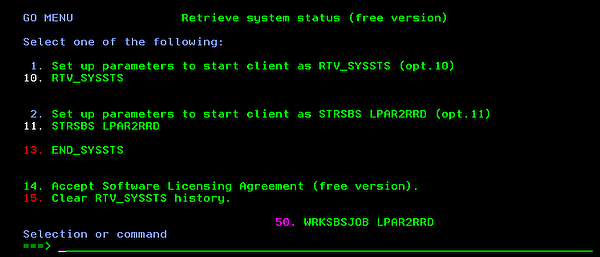
You can start XorMon agent in two ways.- As a command RTV_SYSSTS.
CHGJOBD JOBD(LPAR2RRD/LPAR2RRD) TEXT('RTV_SYSSTS') RQSDTA(*NONE) RMVAJE SBSD(LPAT2RRD/LPAR2RRD) JOB(LPAR2RRD) ADDLIBLE LPAR2RRD GO MENU Option 1. Set up parameters to start client as RTV_SYSSTS (opt.10) Accept all default parameters for command CHGJOBD and RMVAJE. Option 10. RTV_SYSSTS - As an autostart job entry in LPAR2RRD subsystem.
CHGJOBD JOBD(LPAR2RRD) TEXT('STRSBS SBSD(LPAR2RRD/LPAR2RRD)') RQSDTA('RTV_SYSSTS') ADDAJE SBSD(LPAR2RRD/LPAR2RRD) JOB(LPAR2RRD) JOBD(LPAR2RRD/LPAR2RRD) ADDLIBLE LPAR2RRD GO MENU Option 2. Set up parameters to start client as STRSBS LPAR2RRD (option 11) Accept all default parameters for command CHGJOBD and ADDAJE. Option 11. STRSBS LPAR2RRD
Option 1 and Option 2 is used only once or when you decide to change the way the program starts.
Use F1 as a help for RTV_SYSSTS command.
- As a command RTV_SYSSTS.
-
Status of the agent.
GO MENU Select: Option 50
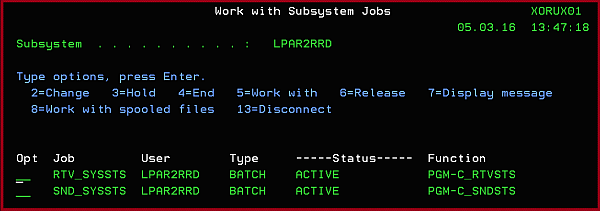
On the SND_SYSSTS line ➞ type 5 ➞ type 10 ➞ F10 and you have to see:

You have to see this message after 10 - 20 minutes from the agent start:
It says that connection to XorMon server has been established and some data has been already sent out.
IF: C_SNDSTS - connection Established()
-
LPAR2RRD UI
You will see IBM i data in the UI after first load.sh run on the server (it usually runs once an hour).
Go to the UI, follow the server and lpar. (Ctrl-F5 is necessary to refresh the UI)
-
Stop of the agent
On the job log you will see:
ADDLIBLE LPAR2RRD GO MENU Select: 13. END_SYSSTS ➞ Enter ➞ Enter
WRKJOB ➞ option 10 ➞ Display job log, if active, on job queue, or pending F10, F18 ... IN: END_SYSSTS No active jobs in subsystem LPAR2RRD Ending of subsystem LPAR2RRD in progress. IN: END_SYSSTS EndSbs LPAR2RRD *Immed EN: END_SYSSTS - *ALL. GO MENU Select: option 50 ➞ WRKSBSJOB LPAR2RRD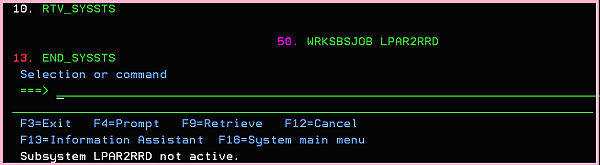
See above that subsystem LPAR2RRD is not active.
-
if you create your user profile LPAR2RRD set JOBD parameter as a Job description which includes in INLLIBL LPAR2RRD library too (QTEMP,LPAR2RRD).
CRTUSRPRF USRPRF(LPAR2RRD) ..... JOBD(LPAR2RRD/LPAR2RRD) ...... CHGJOBD JOBD(LPAR2RRD/LPAR2RRD) .... INLLIBL(LPAR2RRD QTEMP) ....
Notes
-
XorMon agent uses dlpar_get_info API - service program QPMLPMGT in QSYS.
When user profile LPAR2RRD under which XorMon agent being submitted is not authorized to this service program, obtain authority to this service program e.g. by command:GRTOBJAUT OBJ(QSYS/QPMLPMGT) OBJTYPE(*SRVPGM) USER(LPAR2RRD) AUT(*USE)
Be careful if you upgrade your i5/OS. Service program QPMLPMGT is into QSYS library. - Grant this permission to LPAR2RRD user on IBMi V7R6 and higher
CHGFCNUSG FCNID(QIBM_IOSYSCFG_VIEW) USER(LPAR2RRD) USAGE(*ALLOWED)
Troubleshooting
- Communication problem: repeated connections with failures.
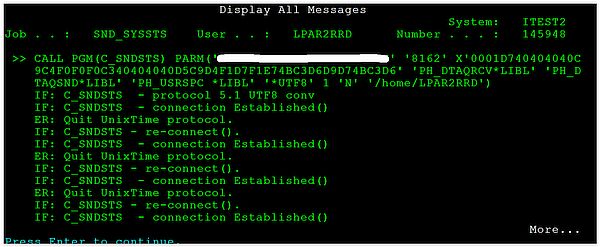
- Communication problem: errors when the agent connecting the server
If you see into SND_SYSSTS eny errno > 0 message: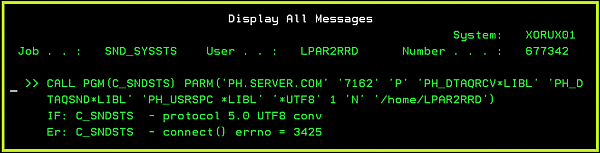
There is a communication error.
It might have 2 reasons:- IP address or port is wrong. (check above how to change it)
- IP connection between XorMon server and IBM i is not allowed on port 8162.
Stop the agent and correct IP address/port or firewall setup. Start it up as soon as it is fixed.ADDLIBLE LPAR2RRD LPAR2RRD/END_SYSSTS
-
Error during FTP:
Change User profile JOBD job description via QSECOFR account:
530 Not able to set ASP group for user LPAR2RRD; logon rejected.
CHGUSRPRF USRPRF(LPAR2RRD) JOBD(QGPL/QDFTJOBD)
-
Error during RSTLIB:
LPAR2RRD library is being used by someone else, release it (open ftp session etc) and try it again:
Cannot use lib LPAR2RRD in library QSYS
- In case of a problem check our forum or contact us via [email protected]
Upgrade IBM i agent - Free Edition
-
Download the latest OS agent for IBM i (V6R1.0+).
After unzipping you get LPAR2RRD.savf in save file format.
All below under LPAR2RRD user.
-
Stop IBM i OS agent:
ADDLIBLE LPAR2RRD LPAR2RRD/END_SYSSTS GO MENU --> 50 Subsystem LPAR2RRD is not active
-
Set LPAR2RRD password from *NONE to <password> and change user profile to JOBD job description.
CHGUSRPRF USRPRF(LPAR2RRD) PASSWORD(<password>) CHGUSRPRF USRPRF(LPAR2RRD) JOBD(QGPL/QDFTJOBD)
-
Before your upgrade LPAR2RRD client, LPAR2RRD*savf must exist on IBM i in QGPL.
CHKOBJ OBJ(QGPL/LPAR2RRD) OBJTYPE(*FILE)
- Exists - clear content of this *SAVF.
CLRSAVF FILE(QGPL/LPAR2RRD) CLRLIB LIB(LPAR2RRD)
-
No exist - create a *SAVF.
CRTSAVF FILE(QGPL/LPAR2RRD) TEXT('LPAR2RRD Client')
- Exists - clear content of this *SAVF.
-
Execute that only if you upgrading Enterprise Edition of XorMon IBM i OS agent.
It contains ASP latency monitoring.
Use Grant Object Authority (GRTOBJAUT) command to grant *USE authority for APIs QPMWKCOL and QPMLPFRD:GRTOBJAUT OBJ(QSYS/QPMLPFRD) OBJTYPE(*PGM) USER(LPAR2RRD) AUT(*use) GRTOBJAUT OBJ(QSYS/QPMWKCOL) OBJTYPE(*PGM) USER(LPAR2RRD) AUT(*use)
- Grant this permission to LPAR2RRD user on IBMi V7R6 and higher
CHGFCNUSG FCNID(QIBM_IOSYSCFG_VIEW) USER(LPAR2RRD) USAGE(*ALLOWED)
-
Transfer LPAR2RRD.savf to IBM i system from your PC via ftp in binary mode.
Do not forget to logoff from ftp session to do not lock it out.ftp <as400.server.com> Connected to as400. 220-QTCP at 192.168.177.50. 220 Connection will close if idle more than 5 minutes. Name (as400.server.com:lpar2rrd): lpar2rrd 431 Requested security mechanism not available at this time. 331 Enter password. Password: 230 LPAR2RRD logged on. Remote system type is . ftp> bin ftp> cd qgpl ftp> put LPAR2RRD.savf LPAR2RRD local: LPAR2RRD.savf remote: LPAR2RRD 200 PORT subcommand request successful. 150 Sending file to member LPAR2RRD in file LPAR2RRD in library QGPL. 226 File transfer completed successfully. 3590400 bytes sent in 0.41 secs (9007.2 kB/s)
-
Display library
DSPSAVF FILE(QGPL/LPAR2RRD) OUTPUT(*) LPAR2RRD *LIB PROD LPAR2RRD 152 YES ACCEPTFREE *PGM CLE LPAR2RRD 176 YES ... -
Restore Library
RSTLIB SAVLIB(LPAR2RRD) DEV(*SAVF) SAVF(QGPL/LPAR2RRD) MBROPT(*ALL) ALWOBJDIF(*ALL) 35 object restored from LPAR2RRD to LPAR2RRD.
CHGJOBD JOBD(LPAR2RRD/LPAR2RRD) JOBQ(LPAR2RRD/LPAR2RRD)
     TEXT('RTV_SYSSTS') USER(LPAR2RRD) RQSDTA(*NONE) INLLIBL(LPAR2RRD QGPL QTEMP)
After this command see LPAR2RRD *JOBD object in restored LPAR2RRD library.
-
In the "initial user part of the library list" specify LPAR2RRD library. Parameter INLLIBL in *JOBD object.
See LPAR2RRD *JOBD object into restored LPAR2RRD library.CHGUSRPRF USRPRF(LPAR2RRD) JOBD(LPAR2RRD/LPAR2RRD)
-
Configure XorMon server host
Change Monitor Server Name or IP addr (IPADR) to your running XorMon server
This step must be done, because default server IP address for sending data is LOOPBACK.
- Using hostname:
CHGCMDDFT CMD(LPAR2RRD/RTV_SYSSTS) NEWDFT('IPADR(XorMon.SERVER.COM)') -
Using IP address:
CHGCMDDFT CMD(LPAR2RRD/RTV_SYSSTS) NEWDFT('IPADR(''192.168.1.2'')')
- Using hostname:
-
Recommendation: Change User profile LPAR2RRD PASSWORD to *NONE to forbid remote LPAR2RRD user access.
CHGUSRPRF USRPRF(LPAR2RRD) PASSWORD(*NONE)
-
Accept license agreement
Only for users using free version without support. Licensing details.
In the case that the start XorMon agent is executed without acceptance, then an error message appears.ADDLIBLE LPAR2RRD GO MENU Select: 14 Accept Software Licensing Agreement ➞ page down ➞ F14 Accept OK:CL_ACCEPT Expiration date of this client is 2017-06-25
ER: RTV_SYSSTS: frp.HASH512not not correct. ER: RTV_SYSSTS: Please revalidate i5/OS client from MENU option F14. ER: RTV_SYSSTS: i5/OS client ended.
Agent is licensed to free use for 1 year. You will have to re-accept license in the same way next year.
You can see expiration dates of all agents in the LPAR2RRD UI ➞ menu ➞ LPAR2RRD ➞ Data check ➞ IBM i
You get this error during agent start if you do not accept the license:
-
Start of the agent
You can start XorMon agent in two ways.- As a command RTV_SYSSTS.
CHGJOBD JOBD(LPAR2RRD/LPAR2RRD) TEXT('RTV_SYSSTS') RQSDTA(*NONE) RMVAJE SBSD(LPAT2RRD/LPAR2RRD) JOB(LPAR2RRD) ADDLIBLE LPAR2RRD GO MENU Option 1. Set up parameters to start client as RTV_SYSSTS (opt.10) Accept all default parameters for command CHGJOBD and RMVAJE. Option 10. RTV_SYSSTS - As an autostart job entry in LPAR2RRD subsystem.
CHGJOBD JOBD(LPAR2RRD) TEXT('STRSBS SBSD(LPAR2RRD/LPAR2RRD)') RQSDTA('RTV_SYSSTS') ADDAJE SBSD(LPAR2RRD/LPAR2RRD) JOB(LPAR2RRD) JOBD(LPAR2RRD/LPAR2RRD) ADDLIBLE LPAR2RRD GO MENU Option 2. Set up parameters to start client as STRSBS LPAR2RRD (option 11) Accept all default parameters for command CHGJOBD and ADDAJE. Option 11. STRSBS LPAR2RRD
Option 1 and Option 2 is used only once or when you decide to change the way the program starts.
Use F1 as a help for RTV_SYSSTS command.
- As a command RTV_SYSSTS.
-
Status of the agent.
GO MENU Select: Option 50
On the SND_SYSSTS line ➞ type 5 ➞ type 10 ➞ F10
You have to see this message after 20 - 30 minutes from the agent start:
It says that connection to XorMon server has been established and some data has been already sent out.
IF: C_SNDSTS - connection Established()
-
Communication problem
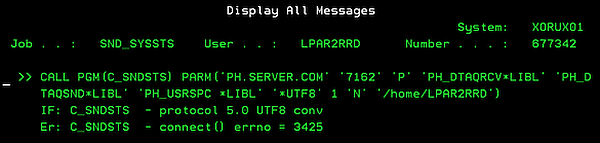
If you see this message into joblog SND_SYSSTS then there is a communication problem.- Address or port is wrong.
- IP connection between LPAR2RRD monitor server and AS400 not correct.
- ping:
PING RMTSYS('XorMon.SERVER.COM') Verifying connection to host system XorMon.SERVER.COM at address 192.168.1.2. Connection verification statistics: 5 of 5 successful (100 %). -
telnet:
If you get after 15 seconds "No response from remote host system within open time-out." then it is wrong!.
TELNET RMTSYS('XorMon.SERVER.COM') PORT(8162) RMTUSER(TESTSTRING) INZWAIT(15)
  Connecting to remote host 192.168.1.2 using port 8162
Either XorMon server daemon is not running or TCP connection is filtered on the network by a firewall.
If connection hanging (it times out in 10 mins) then it is ok, you can interrupt it by:
SysRq ➡ Enter ➡ 2. End previous request
-
XorMon server UI
You should see new data in graphs 20 - 30 minutes after the agent starts.
Go to the UI, follow the server and LPAR. (Ctrl-F5 is necessary to refresh the UI)
-
Start/Stop XorMon agent
ADDLIBLE LPAR2RRD GO MENU start: 10. RTV_SYSSTS ➞ Enter ➞ Enter stop: 13. END_SYSSTS ➞ Enter ➞ Enter
Upgrade IBM i OS agent - enterprise edition
-
Download the latest OS agent for IBM i (V6R1.0+) from the link provided by LPAR2RRD support
After unzipping you get LPAR2RRD_F.savf in save file format.
All below under LPAR2RRD user.
-
Stop IBM i OS agent:
ADDLIBLE LPAR2RRD LPAR2RRD/END_SYSSTS GO MENU --> 50 Subsystem LPAR2RRD is not active
-
Set LPAR2RRD password from *NONE to <password> and change user profile to JOBD job description.
CHGUSRPRF USRPRF(LPAR2RRD) PASSWORD(<password>) CHGUSRPRF USRPRF(LPAR2RRD) JOBD(QGPL/QDFTJOBD)
-
Clear install library and all object in library
CLRSAVF FILE(QGPL/LPAR2RRD) CLRLIB LIB(LPAR2RRD)
-
Execute that only if you installing Enterprise Edition of XorMon IBM i OS agent.
It contains ASP latency monitoring.
Use Grant Object Authority (GRTOBJAUT) command to grant *USE authority for APIs QPMWKCOL and QPMLPFRD:GRTOBJAUT OBJ(QSYS/QPMLPFRD) OBJTYPE(*PGM) USER(LPAR2RRD) AUT(*use) GRTOBJAUT OBJ(QSYS/QPMWKCOL) OBJTYPE(*PGM) USER(LPAR2RRD) AUT(*use)
- Grant this permission to LPAR2RRD user on IBMi V7R6 and higher
CHGFCNUSG FCNID(QIBM_IOSYSCFG_VIEW) USER(LPAR2RRD) USAGE(*ALLOWED)
-
Transfer LPAR2RRD_F.savf to IBM i system from your PC via ftp in binary mode.
Do not forget to logoff from ftp session to do not lock it out.ftp <as400.server.com> Connected to as400. 220-QTCP at 192.168.177.50. 220 Connection will close if idle more than 5 minutes. Name (as400.server.com:lpar2rrd): lpar2rrd 431 Requested security mechanism not available at this time. 331 Enter password. Password: 230 LPAR2RRD logged on. Remote system type is . ftp> bin ftp> cd qgpl ftp> put LPAR2RRD_F.savf LPAR2RRD local: LPAR2RRD_F.savf remote: LPAR2RRD 200 PORT subcommand request successful. 150 Sending file to member LPAR2RRD in file LPAR2RRD in library QGPL. 226 File transfer completed successfully. 3590400 bytes sent in 0.41 secs (9007.2 kB/s)
-
Display library
DSPSAVF FILE(QGPL/LPAR2RRD_F) OUTPUT(*) LPAR2RRD *LIB PROD LPAR2RRD 152 YES ACCEPTFREE *PGM CLE LPAR2RRD 176 YES ... -
Restore Library
RSTLIB SAVLIB(LPAR2RRD) DEV(*SAVF) SAVF(QGPL/LPAR2RRD_F) MBROPT(*ALL) ALWOBJDIF(*ALL) 34 object restored from LPAR2RRD to LPAR2RRD.CHGJOBD JOBD(LPAR2RRD/LPAR2RRD) JOBQ(LPAR2RRD/LPAR2RRD) TEXT('RTV_SYSSTS') USER(LPAR2RRD) RQSDTA(*NONE) INLLIBL(LPAR2RRD QGPL QTEMP)After this command see LPAR2RRD *JOBD object in restored LPAR2RRD library.
-
In the "initial user part of the library list" specify LPAR2RRD library. Parameter INLLIBL in *JOBD object.
See LPAR2RRD *JOBD object into restored LPAR2RRD library.CHGUSRPRF USRPRF(LPAR2RRD) JOBD(LPAR2RRD/LPAR2RRD)
-
Configuration
Change Monitor Server Name or IP addr (IPADR) to your running XorMon server
This step must be done again as it has been cleared out. Use same name(IP) as before.
For example if hostname is XorMon.SERVER.COM.
Network connectivity verification via ping at first:Using IP address instead of hostname example:PING RMTSYS('XorMon.SERVER.COM') Verifying connection to host system XorMon.SERVER.COM at address 192.168.1.2. Connection verification statistics: 5 of 5 successful (100 %). CHGCMDDFT CMD(LPAR2RRD/RTV_SYSSTS) NEWDFT('IPADR(XorMon.SERVER.COM)')CHGCMDDFT CMD(LPAR2RRD/RTV_SYSSTS) NEWDFT('IPADR(''192.168.1.2'')') -
Recommendation: Change User profile LPAR2RRD PASSWORD to *NONE to forbid remote LPAR2RRD user access.
CHGUSRPRF USRPRF(LPAR2RRD) PASSWORD(*NONE)
-
Accept license agreement
Licensing details. You need to do it once, expiration will be set to 2099.
In the case that the start XorMon agent is executed without acceptance, then an error message appears.ADDLIBLE LPAR2RRD GO MENU Select: 14 Accept Software Licensing Agreement ➞ page down ➞ F14 Accept OK:CL_ACCEPT Expiration date of this client is 2099-01-01
ER: RTV_SYSSTS: frp.HASH512not not correct.
ER: RTV_SYSSTS: Please revalidate i5/OS client from MENU option F14.
ER: RTV_SYSSTS: i5/OS client ended.
You can see expiration dates of all agents in the LPAR2RRD UI ➞ menu ➞ LPAR2RRD ➞ Data check ➞ IBM i
You get this error during agent start if you do not accept the license:
-
Start of the agent
You can start XorMon agent in two ways.- As a command RTV_SYSSTS.
CHGJOBD JOBD(LPAR2RRD/LPAR2RRD) TEXT('RTV_SYSSTS') RQSDTA(*NONE) RMVAJE SBSD(LPAT2RRD/LPAR2RRD) JOB(LPAR2RRD) ADDLIBLE LPAR2RRD GO MENU Option 1. Set up parameters to start client as RTV_SYSSTS (opt.10) Accept all default parameters for command CHGJOBD and RMVAJE. Option 10. RTV_SYSSTS - As an autostart job entry in LPAR2RRD subsystem.
CHGJOBD JOBD(LPAR2RRD) TEXT('STRSBS SBSD(LPAR2RRD/LPAR2RRD)') RQSDTA('RTV_SYSSTS')
ADDAJE  SBSD(LPAR2RRD/LPAR2RRD) JOB(LPAR2RRD) JOBD(LPAR2RRD/LPAR2RRD)
ADDLIBLE LPAR2RRD
GO MENU
  Option 2. Set up parameters to start client as STRSBS LPAR2RRD (option 11)
    Accept all default parameters for command CHGJOBD and ADDAJE.
  Option 11. STRSBS LPAR2RRD
Option 1 and Option 2 is used only once or when you decide to change the way the program starts.
Use F1 as a help for RTV_SYSSTS command.
- As a command RTV_SYSSTS.
-
Status of the agent.
GO MENU
  Select: Option 50
On the SND_SYSSTS line ➞ type 5 ➞ type 10 ➞ F10
You have to see this message after 20 - 30 minutes from the agent start:
It says that connection to XorMon server has been established and some data has been already sent out.
IF: C_SNDSTS - connection Established()
-
Communication problem
If you see this message into joblog SND_SYSSTS then there is a communication problem.- Address or port is wrong.
- IP connection between LPAR2RRD monitor server and AS400 not correct.
-
XorMon server UI
You should see new data in graphs 20 - 30 minutes after the agent starts.
Go to the UI, follow the server and LPAR. (Ctrl-F5 is necessary to refresh the UI)
-
Start/Stop XorMon agent
ADDLIBLE LPAR2RRD
GO MENU
  start: 10. RTV_SYSSTS  ➞ Enter ➞ Enter
  stop:  13. END_SYSSTS  ➞ Enter ➞ Enter
Licensing of IBM i OS agent
Supported version
XorMon IBM i OS agent is released under GNU General Public License for users under support.Support details.
Free version
XorMon IBM i OS agent is free software. You can freely use it without any functional restrictions.You have to accept license agreement every year to make it work for next year.
Accepting license agreement
Log to your IBM i server and:
ADDLIBLE LPAR2RRD
GO MENU
  Select: 14 Accept Software Licensing Agreement ➞ scroll down ➞ F14 Accept
  OK:CL_ACCEPT Expiration date of this client is 2017-06-25
You get this error during agent start if you do not accept the license:
|
License text download
1.1.7a
- Free Edition expiration date was removed, no limit now (older versions expire at 1.1.2022)
1.1.7
- It fixes a bug connected to many memory pools (like 30+), in that case the agent does not start
1.1.6
- Implemented ASP latency monitoring
1.1.5
- It fixes an issue with reconnection to the server after any outage (affected was only version 1.1.4)
1.1.4
- It fixes an issue when "DLY" job appears in TOP10 jobs then data transfer format was corrupted and data ignored for that transfer.
1.1.2
-
It fixes a problem when communication between the IBM i and XorMon server might hang on LPARs with many defined memory pools.
1.1.1
-
It fixes a problem when communication between the IBM i and XorMon server repeatedly fails.
It might occure very rare under very specific conditions.
- Colors are kept same for all items in all graphs (daily - yearly)
- New graphs "ASP % used" can be found on the same tab as "ASP used" on the bottom
1.1.0
It brings these new features:- Disk TOP10 has been implemented, it is TOP 10 disks in the systems
- Ethernet interfaces statistics has bee added (throughput in MB/sec, packets/sec, discarded/sec)
- Fixed a problem with presentation of memory pools 2TB+
- CVS export from historical graphs has been implemented
1.0.2
Initial releaseDernière mise à jour :