NetApp monitoring
XorMon, open source under GPL v3, monitors NetApp FAS, AFF and ASA, E/EF-series and StorageGRID through the REST API of the storage, on port 443 or 8443 with a non-privileged user, and also lists ONTAP Select. It graphs IO, data throughput, latency and capacity per pool and volume, plus node, port and drive statistics.
Which NetApp storage systems does XorMon monitor?
XorMon monitors NetApp FAS, AFF and ASA in C-mode (CDOT), the E/EF-series and StorageGRID, each read through the REST API of the storage, and lists ONTAP Select with its own installation tab.
FAS, AFF and ASA systems without the REST API, FAS 7-mode and the SANtricity CLI method for the E/EF-series are supported by STOR2RRD, a legacy tool. XorMon is its full-stack successor, and all new development goes into XorMon.
Sources: installation tabs below, updated 2026-11-07, Storage monitoring, updated 2026-11-06, and Not supported yet, updated 2026-10-04.
Which NetApp performance metrics does XorMon collect?
On FAS, AFF and ASA, XorMon graphs IO, data throughput and latency per pool, volume, LUN, drive and SVM, plus IO and data per Qtree and node, protocol statistics (CIFS, NFS, iSCSI, FCP) and CPU per node.
Besides IO, throughput and latency, pools have capacity and block size, the E/EF-series is graphed per pool, volume and host, and StorageGRID adds node capacity, CPU, memory, network, S3, Swift, ILM and load balancer metrics. Snapshot configuration and health status are monitored on FAS, AFF and ASA, a feature disabled by default.
Sources: Feature matrix, NetApp tab, and Storage snapshot, updated 2026-10-19.
Can XorMon monitor NetApp SolidFire?
Not yet: NetApp SolidFire is on the list of technologies not yet implemented in XorMon, and it is supported by STOR2RRD, a legacy tool.
The SolidFire tab on this page points to STOR2RRD, and the voting page lets users ask for missing device support, more votes meaning a higher priority.
Sources: installation tabs below, updated 2026-11-07, and Not supported yet, updated 2026-10-04.
How does XorMon connect to NetApp storage?
XorMon reads the data through the REST API of the storage, on port 443 (HTTPS) for FAS, AFF, ASA and StorageGRID, and on port 8443 for the E/EF-series.
On FAS, AFF and ASA, a dedicated xormon user gets read-only access, and StorageGRID needs no privileged access, since the account only reads system metrics through the primary Admin Node. On the E/EF-series, the REST API provides more metrics than the SANtricity CLI without third-party software, and the SANtricity Web Service Proxy is also supported as a data source.
Sources: installation tabs below, updated 2026-11-07, and XorMon deployment.
Key points
- Monitors NetApp FAS, AFF, ASA, E/EF-series and StorageGRID through the storage REST API; ONTAP Select has its own installation tab.
- Port 443 for FAS, AFF, ASA and StorageGRID, port 8443 for the E/EF-series, with a non-privileged user.
- IO, data throughput and latency per pool, volume, LUN, drive and SVM on FAS, AFF and ASA; per pool, volume and host on the E/EF-series.
- SolidFire, FAS 7-mode and the ONTAPI method are supported by STOR2RRD, a legacy tool.
- Health status, performance and hardware event alerts, open source license (GPL v3).
Installation and configuration for NetApp
- FAS/AFF/ASA: REST API
- E/EF-series
- StorageGRID
- ONTAPI Select
- FAS/AFF/ASA: ONTAPI
- FAS 7-mode
- SolidFire
Do you want to let us know your priorities? Vote for your missing features and device support. More votes, bigger priority for us.
List of not supported technologies yet
Do you want to let us know your priorities? Vote for your missing features and device support. More votes, bigger priority for us.
List of not supported technologies yet
Do you want to let us know your priorities? Vote for your missing features and device support. More votes, bigger priority for us.
List of not supported technologies yet
- REST API use it on new models which support it, it provides more data metrics and is not necessary install 3rd part SW
- SANtricity CLI works on all models
SANtricity method is supported by STOR2RRD only so far.
Configuration
-
Allow access from the XorMon host to the NetApp storage on port 8443.
- Storage user: either use pre-defined user 'monitor' which has monitor role or create 'xormon' under same role
Change its password if necessary through the storage UI.
XorMon storage configuration
- Add storage into configuration from the UI:
Settings icon ➡ Storage ➡ New ➡ Vendor:device ➡ NetApp E/EF-series
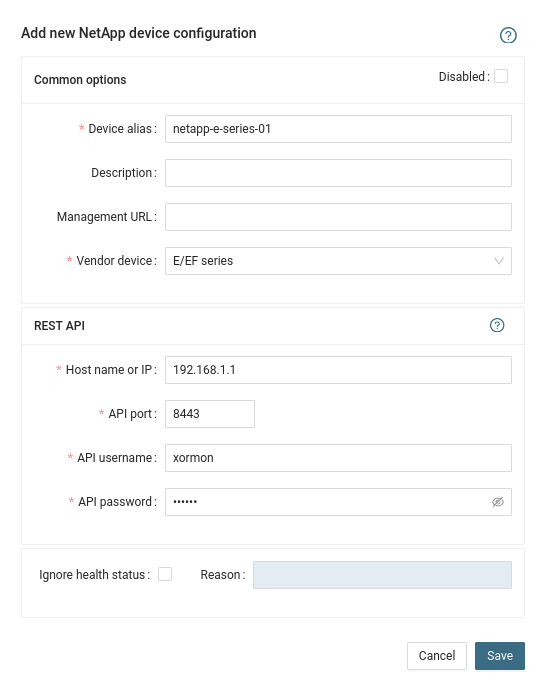
- Run "Test" for configured storage device, it must show "OK"
-
Wait about 1 hour, then reload the web browser, you should see it in XorMon UI
Note NetApp REST API is available since NetApp ONTAPI 9.12.1, use ONTAPI method for older firmwares
ONTAPI method is actually supported only via STOR2RRD
Storage access
-
Allow access from the XorMon host to the NetApp storage on port 443.
-
Login to C-mode NetApp system as admin and create user with read-only access for performance monitoring:
# Create xormon user, enable REST API access
Cmode::> security login create -username xormon -role readonly -application http -authmethod password

Cmode::> security login show -user-or-group-name xormon
                                                                 Second
User/Group                 Authentication                 Acct   Authentication
Name           Application Method        Role Name        Locked Method
-------------- ----------- ------------- ---------------- ------ --------------
xormon         http        password      readonly         no     none
Or you can use ONTAPI System Manager to do the same:
(example uses 'stor2rrd' user but use 'xormon' preferably)
- Make sure that web services are started, again under admin account
Cmode::> system services web show External Web Services: true Status: online HTTP Protocol Port: 80 HTTPS Protocol Port: 443 HTTP Enabled: true - Make sure that NetApp build in firewall does not filter it:
Cmode::> firewall policy show -policy mgmt -instance -service http,https
  Vserver Name: Cmode
      Policy: mgmt
     Service: http
  Allowed IPs: 0.0.0.0/0
     IPspace: Default

  Vserver Name: Cmode
      Policy: mgmt
     Service: https
  Allowed IPs: 0.0.0.0/0
     IPspace: Default

Cmode::> net int show -vserver Cmode -lif cluster_mgmt
  --> interfaces must have: Firewall Policy: mgmt
XorMon storage configuration
-
Add storage into configuration from the UI:
Settings icon ➡ Storage ➡ New ➡ Vendor:device ➡ NetApp FAS CDOT (REST API)

- Run "Test" for configured storage device, it must show "OK"
-
Wait about 1 hour, then reload the web browser, you should see it in XorMon UI
Storage connectivity
-
STOR2RRD communicates with NetApp StorageGRID primary Admin Node IP address (same as the management Web UI IP address). Protocol: https/443
Optionally, you can specify a non-primary Admin Node IP address as well for high availability.
Allow access from the XorMon host to the NetApp storage on port 443
- Storage user
-
NOTE: XorMon does not need a privileged access to NetApp StorageGRID.
NetApp StorageGRID "Admin User" is a type of system account used for various maintenance tasks.
The account created for XorMon has access only to system metrics.
- Create new Admin Group
Configuration ➡ Admin Groups
Add new group
Add "Metrics Query" permission
(example uses 'stor2rrd' user but use 'xormon' preferably)
-
Create new Admin User
Configuration ➡ Admin Users
Create new user
Assign previously created Admin Group to new user

-
NOTE: XorMon does not need a privileged access to NetApp StorageGRID.
XorMon storage configuration
- Add storage into configuration from the UI:
Settings icon ➡ Storage ➡ New ➡ Vendor:device ➡ NetApp StorageGRID

- Run "Test" for configured storage device, it must show "OK"
-
Wait about 1 hour, then reload the web browser, you should see it in XorMon UI
XorMon monitors storage from other vendors too: see storage performance monitoring for every supported system.
Dernière mise à jour :