Solaris monitoring
Implementation is done through OS agent running on each Oracle Solaris host (LDOM/CDOM/Global Zone/Zone).
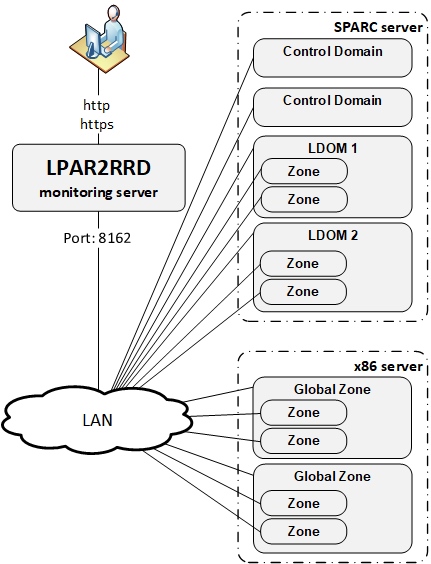
Working modes
- install OS agents on all Control Domains (CDOM) only
- Install OS agents on all LDOMs and Global Zones
- Install OS agents on all LDOMs and Global Zones and Zones
2) brings you more details about each LDOM.
3) monitoring all Zones from OS point of view.
Installation summary
- Assure your network allows TCP connection initiated from OS agents to XorMon server on port 8162
- Install the OS agent on all LDOMs, CDOMs and Global Zones
- Optionally install the OS agent on all Zones to get additional OS based metrics
OS agent install on a LDOM/CDOM
- Create user xormon with role solaris.ldoms.read
- Installation under root:
# gunzip lpar2rrd-agent-6.00-0.solaris-sparc.tar.gz
# tar xf lpar2rrd-agent-6.00-0.solaris-sparc.tar
# pkgadd -d .
  The following packages are available:
  1  lpar2rrd-agent     LPAR2RRD OS agent 6.00
  ...
Upgrade (remove original package at first then install the new one):# pkgrm lpar2rrd-agent # pkgadd -d .
- Assign LDOM/CDOM read rights solaris.ldoms.read for the user (xormon) which will run the agent:
# usermod -A solaris.ldoms.read xormon
Assure that rights are fine, "/sbin/ldm ls -p" should not return "Authorization failed"# su - xormon $ /sbin/ldm ls -p
OS agent install on Zone/Global Zone
-
Use any unprivileged user (xormon preferably) for agent install and run.
Use same Solaris package like in LDOM example above.
Use Solaris x86 package on that platform: lpar2rrd-agent-6.00-0.solaris-i86pc.tar
Testing connection
- Test connection to the XorMon server
$ /usr/bin/perl /opt/lpar2rrd-agent/lpar2rrd-agent.pl -d <XorMon-SERVER>
  ...
  OS agent working for server: <XorMon-SERVER>
  store file for sending is /var/tmp/lpar2rrd-agent-<XorMon-SERVER>-lpar2rrd.txt
It means that data has been sent to the server, all is fine
Here is example when the agent is not able to sent data :$ /usr/bin/perl /opt/lpar2rrd-agent/lpar2rrd-agent.pl -d <XorMon-SERVER> ... OS agent working for server: <XorMon-SERVER> store file for sending is /var/tmp/lpar2rrd-agent-<XorMon-SERVER>-lpar2rrd.txt Agent timed out after : 50 seconds /opt/lpar2rrd-agent/lpar2rrd-agent.pl:265
It means that the agent could not contact the server.
Check communication (if firewalls are open), DNS resolution of the server etc.
Schedule OS agent in Solaris xormon's crontab
# su - xormon
$ crontab -e
* * * * * /usr/bin/perl /opt/lpar2rrd-agent/lpar2rrd-agent.pl <XorMon-SERVER> > /var/tmp/lpar2rrd-agent.out 2>&1
Replace <XorMon-SERVER> by hostname of your XorMon server.
You might need to add xormon user into /etc/cron.allow (Linux) or /var/adm/cron/cron.allow (AIX) if 'crontab -e' command fails
Allow it for xormon user as root user.
# echo "xormon" >> /etc/cron.allow
Dernière mise à jour :