Hitachi Troubleshooting
Hitachi CCI & Export Tool troubleshooting
Hitachi CCI (HORCM/raidcom)
-
Hitachi official docu: How To Debug CCI Issues
-
When the following error occurs during the connection test of the device
raidcom: [EX_EWSTOT] Timeout waiting for specified status
Solution:- Stop HORM instance, in this case number one
su -l xormon
/HORCM/usr/bin/horcmshutdown.sh 1
- Increase the timeout parameter (timeout(10ms)) in /etc/horcm1.conf. The default value should be 3000, increase the value to 10000.
# ip_address service poll(10ms) timeout(10ms)
localhost    11001   1000       3000
HORCM_CMD
# dev_name dev_name dev_name
\\.\IPCMD-192.168.1.1-31001
\\.\IPCMD-192.168.1.2-31001
to# ip_address service poll(10ms) timeout(10ms) localhost 11001 1000 10000 HORCM_CMD # dev_name dev_name dev_name \\.\IPCMD-192.168.1.1-31001 \\.\IPCMD-192.168.1.2-31001
- Start HORM instance
/HORCM/usr/bin/horcmstart.sh 1
-
Try connection test of the device
- Stop HORM instance, in this case number one
-
This is most comon error after testing xormon connection to the storage:
$ ./bin/config_check.sh <Storage Name> STORAGE: SVPG01: VSPG TCP connection to "<SVP IP>" on port "1099" is ok TCP connection to "<SVP IP>" on port "51099" is ok TCP connection to "<SVP IP>" on port "51100" is ok WARNING : TCP connection to "<SVP IP>" on port "5110" has failed! It might need to be open on the firewall. VSPG Error: command failed: raidcom -login xormon
1. Make sure you use proper user credential (user & password)-I connection failed!!
2. Make sure you do not use shell special characters like #!?|$*[]\{}`"'& in the password, use ;:.+-%@ instead
-
Error during starting of HORCM under xormon user
raidcom: [EX_ATTHOR] Can't be attached to HORC manager
Problem is that it is running under root! Stopt it under root and start it up under xormon
When that happen set user permission for /HORCM again as per adivse below, starting under root screw user rights.
# /HORCM/usr/bin/horcmshutdown.sh 1
# su - xormon
$ /HORCM/usr/bin/horcmstart.sh 1
Check if they are running$ ps -ef | grep horcm xormon 19660912 1 0 Feb 26 - 0:03 horcmd_01
-
Make sure you are able to start HORCM instance under xormon
$ /HORCM/usr/bin/horcmstart.sh 1
$ ps -ef |grep horcmd_01
  xormon   14124     1  0 17:21 ?        00:00:00 horcmd_01
-
When it does not start then check file rights in /HORCM dir
Make sure that everything is executable and writeable by xormon user
Under root identification execute this:# touch /HORCM/etc/USE_OLD_IOCTL # chown xormon /HORCM # chown -R xormon /HORCM/* /HORCM/.uds # chmod 755 /HORCM /HORCM/usr/bin /HORCM/usr/bin/* /HORCM/log* /HORCM/etc/horcmgr /HORCM/etc/*conf /HORCM/.uds/
-
If you us commande device for storage communication in /etc/horcm1.conf then assure that stoar2rrd user owns it:
$ ls /dev/sd* | /HORCM/usr/bin/inqraid -CLI -fx
  DEVICE_FILE     PORT    SERIAL  LDEV CTG  H/M/12  SSID R:Group PRODUCT_ID
  sda             -            -     -   -       -     -       - Virtual disk
  sdb             -            -     -   -       -     -       - Virtual disk
  sdc             CL4-A   411711   64B   -       -  000A A:00001 OPEN-V-CM
$ ls -l /dev/sdc
  brw-rw---- 1 xormon   disk 8, 0 Oct 30 10:23 /dev/sdc
-
Try to log on manually, this example uses /etc/horcm1.conf conf file
$ raidcom -login xormon
-I1 $ raidcom get pool -I1 PID POLS U(%) SSCNT Available(MB) Capacity(MB) Seq# Num LDEV# H(%) FMT_CAP(MB) 000 POLN 69 212 21376320 70428792 310878 48 12211 90 - 001 POLN 15 13 199501344 234772440 310878 160 12514 90 - $ raidcom -logout -I1 raidcom : User on Serial#(310444) was removed. -
Use the latest CCI, older CCI do not have to work with newer storage firmware
$ raidqry -h
  Model  : RAID-Manager/Linux/x64
  Ver&Rev: 01-49-03/00
-
restart HORCM instance under proper user xormon:
$ /HORCM/usr/bin/horcmshutdown.sh 1
$ /HORCM/usr/bin/horcmstart.sh 1
-
meta_resource was missing on the array for xormon user group in this case:
$ ./bin/config_check.sh <Storage Name>

  STORAGE: SVPG01: VSPG
  TCP connection to "<SVP IP>" on port "1099" is ok
  TCP connection to "<SVP IP>" on port "51099" is ok
  TCP connection to "<SVP IP>" on port "51100" is ok
  VSPG Error: command failed: raidcom get resource -key opt -I440983
  connection failed!!
  raidcom : User on Serial#(310444) was removed.
Hitachi Export Tool
-
Hitachi official docu:
Troubleshooting Export Tool for Performance Monitor
Device Manager - Storage Navigator Messages
- Test Export Tool 2
$ cd /opt/hds/<firmware level> # example /opt/hds/88-03-23
$ bash ./runUnix.sh show interval -ip <ip controller> -login <user> <password>
  Interval : 5 min
  show interval command success
There may be a permission problem (MSG ID = 8007).A role error (permission error) occurred. (URL = HITPS://172.28.7.76:443/ConfigurationManager/simple/vl1/objects/short-range-monitor-settings/instance, HTTP staus code = 403, details = Forbidden) [MSG ID = 8007] {"errorSource":"/ConfigurationManager/simple/vl1/objects/short-range—-monitor—settings/instance", "messageId": "KART7O007-E", "message":"This operation is not permited. Either appropriate permissions are not assigned or the resource group configuration was modified by other management interfaces after user authentication. Perform user authentication again. If this problem occurs repeatedly, verify and assign appropriate permissions."} Execution stops.Solution: The user must be assigned the Performance Management role (Storage Administrator(read/write)).
For newer models like Hitachi VSP One Block, the user role Storage Administrator (Performance Management) is required.
Here you can see such such problem from cmd line (xormon user has no rights, maintainance user works well):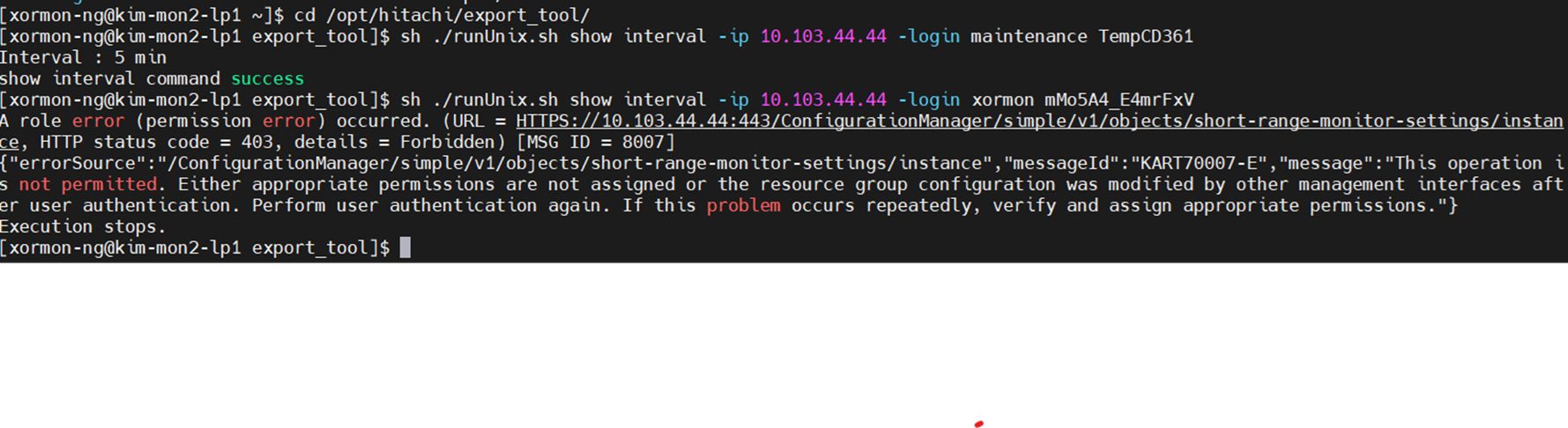
- Export Tool 2 – Displaying Performance Data
If you do not see any performance data in the UI, make sure that the device is added to the Management Console
- Run Export Tool manually to see if it works, follow this link
-
Make sure Export Tool installation directory and all subdirectories are owned by xormon user
# chown -R xormon /opt/hds
- New Export Tool might not communicate properly with the storage SVP due to used SSL:
Export tool command failed: "java -Djdk.tls.maxCertificateChainLength=20 -classpath "/opt/hds/90-09-24/lib/JSanExportLoader.jar:/opt/hds/90-09-24/lib/ccj-3.0.1.jar" -Del.tool.Xmx=536870912 -Dmd.command=/tmp/STGMPR-HPEXP8-1129-CC3226/STGMPR-HPEXP8-1129-CC3226-type-hus_vm.txt -Del.logpath=/tmp/STGMPR-HPEXP8-1129-CC3226/log -Dmd.rmitimeout=20 -Del.security=ignore -Del.secmode=cnsa sanproject.getexptool.RJElMainEx"
Loading ExportTool...
secmode=cnsa
The SSL communication to the server cannot be established: host=10.201.38.120, port=443.-
Verify that the following items are correct, and then retry the operation:
 - The specified IP address or host name
 - The root and server certificates
 - The host name or the IP address of the connected server set for Subject Alternative Name and Common Name of the certificate
 - The security mode of the connected server
 - The TLS protocol of the connected server
 - The cipher suites of the connected server
 - The minimum key length (key exchange) of the connected server
 - The signature hash algorithm of the connected server certificate
...
javax.net.ssl.SSLHandshakeException: Certificates do not conform to algorithm constraints
...
2024/09/17 10:39:13 ExportLoader fail.
2024/09/17 10:39:13 Delete temporary directory.
2024/09/17 10:39:13  delete ./lib/0AC92678
2024/09/17 10:39:13  done.
2024/09/17 10:39:13 ExportLoader finish. exitcode=101
A possible cause is that java is started with the parameter -Del.secmode=cnsa in the Export Tool script
Check /opt/hds/<microcode>/runUnix.sh or /opt/hds/microcode/runUnix.bat file and remove -Del.secmode=cnsa from the command
java -Djdk.tls.maxCertificateChainLength=20 -classpath "./lib/JSanExportLoader.jar:./lib/ccj-3.0.1.jar" -Del.tool.Xmx=536870912 -Dmd.command=command.txt -Del.logpath=log -Dmd.rmitimeout=20 -Del.security=ignore -Del.secmode=cnsa sanproject.getexptool.RJElMainEx

-->

java -Djdk.tls.maxCertificateChainLength=20 -classpath "./lib/JSanExportLoader.jar:./lib/ccj-3.0.1.jar" -Del.tool.Xmx=536870912 -Dmd.command=command.txt -Del.logpath=log -Dmd.rmitimeout=20 -Del.security=ignore sanproject.getexptool.RJElMainEx
Since XorMon version 1.6.15 is this workarounded automatically.
- VSPG 5500 requires Java 11, it prints this error on its start if there is older Java
Exception in thread "main" java.lang.UnsupportedClassVersionError: (com/hitachi/sanproject/rmi/ssl/uty/SSLUtyCommunicationType) bad major version at offset=6 at java.lang.ClassLoader.defineClassImpl(Native Method) at java.lang.ClassLoader.defineClass(ClassLoader.java:267) at java.security.SecureClassLoader.defineClass(SecureClassLoader.java:151) at java.net.URLClassLoader.defineClass(URLClassLoader.java:602) at java.net.URLClassLoader.access$400(URLClassLoader.java:126) at java.net.URLClassLoader$ClassFinder.run(URLClassLoader.java:1057) at java.security.AccessController.doPrivileged(AccessController.java:414) at java.net.URLClassLoader.findClass(URLClassLoader.java:494) at java.lang.ClassLoader.loadClass(ClassLoader.java:651) at sun.misc.Launcher$AppClassLoader.loadClass(Launcher.java:349) at java.lang.ClassLoader.loadClass(ClassLoader.java:617) at java.lang.J9VMInternals.verifyImpl(Native Method) at java.lang.J9VMInternals.verify(J9VMInternals.java:70) at java.lang.J9VMInternals.initialize(J9VMInternals.java:130) at sanproject.getexptool.RJElMain.downloadFiles(RJElMain.java:346) at sanproject.getexptool.RJElMain.startLoader(RJElMain.java:108) at sanproject.getexptool.RJElMain.main(RJElMain.java:386) - Older storage systems (such as the VSP G600) may have issues with newer versions of Java. It's necessary to use Java version 8.
error description:2025/07/01 13:13:35 . HostPath = //X.X.X.X:1099/com.hitachi.sanproject.rmi.supervisor.rmiserver 2025/07/01 13:13:35 . [login] lookup1:start 2025/07/01 13:13:35 . lookup1 Normal 2025/07/01 13:13:35 . [login] checkLicenseEx:start 2025/07/01 13:13:35 . [login] Specified "ip" is wrong. 2025/07/01 13:13:35 . java.rmi.ConnectIOException : Exception creating connection to: X.X.X.X; nested exception is: java.io.IOException: Connection refused (Connection refused) 2025/07/01 13:13:35 Login failed [line = 3] 2025/07/01 13:13:35 Execution stops. 2025/07/01 13:13:35 Export tool endIn the VSP G1500 system, the error may appear differently.2025/10/09 18:15:15 Export tool start [Version 80-06-94/00] .... .... 025/10/09 18:15:15 [ 1] svpip X.X.X.X ; Specifies IP adress of SVP 2025/10/09 18:15:15 ipAddress = X.X.X.X 2025/10/09 18:15:15 [ 2] login User = [user], Passwd = [****************] 2025/10/09 18:15:15 . HostPath = //X.X.X.X/RMIControl 2025/10/09 18:15:15 . [login] lookup1:start 2025/10/09 18:15:15 exit code=1
There are two options to force the tool to use Java 8 (another java version):
- Option A:
Install java version 8 adoptium.net/news/2021/12/eclipse-temurin-linux-installers-available
Under root (Select Java version 8):update-alternatives --config javaThen, try a connection test of the device.
- Option B:
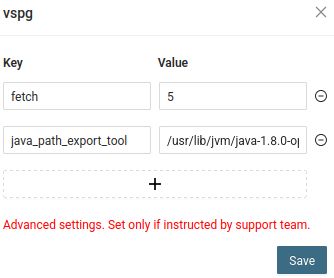
Keep system Java unchanged and set a custom Java path for the Hitachi export tool (globally for the entire microservice or individually per device).
Global setting: XorMon UI → Settings → Application → VSPG → Advanced
Applies to all devices.
Per-device setting: XorMon UI → Settings → Device → Storage → Advanced
Applies only to the selected device.
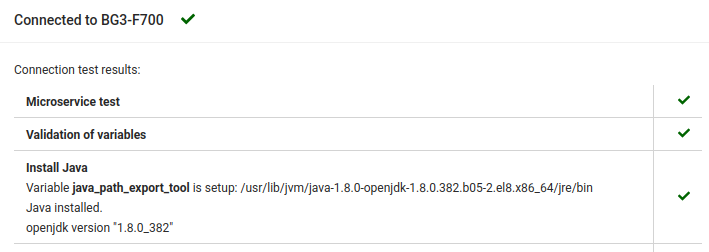
java_path_export_tool=/usr/lib/jvm/java-1.8.0-openjdk-1.8.0.382.b05-2.el8.x86_64/jre/bin
You can see the Java version in the device connection test.
- Option A:
-
This is most comon error after testing xormon connection to the storage:
STORAGE: SVPG01: VSPG TCP connection to "<SVP IP>" on port "1099" is ok TCP connection to "<SVP IP>" on port "51099" is ok TCP connection to "<SVP IP>" on port "51100" is ok WARNING : TCP connection to "
" on port "5110" has failed! It might need to be open on the firewall. Loading ExportTool... Missing ip 2019/01/02 15:46:48 start Export Loader Version : 88-00-00 2019/01/02 15:46:48 command file path=/opt/hds/hds_test/command2.txt 2019/01/02 15:46:48 log file path =/opt/hds/88-03-02/log 2019/01/02 15:46:48 log file name =loader0102154648.log 2019/01/02 15:46:48 ExportLoader mode=ALL 2019/01/02 15:46:48 download port =51099 2019/01/02 15:46:48 read target address from command file. 2019/01/02 15:46:48 Missing ip 2019/01/02 15:46:48 ExportLoader fail. 2019/01/02 15:46:48 ExportLoader finish. exitcode=101 Loading ExportTool... Export tool start [Version 88-03-01-FF/00] command file = /opt/hds/hds_test/command.txt [ 1] ip <SVP IP> ; Specifies IP adress of SVP [ 2] dkcsn 415002 ; Specifies Serial Number of SVP [ 3] login User = ["user"], Passwd = [****************] Login failed [line = 3] Execution stops. Export tool end ... -
The most comon reason why Export Tool does not work is different version of the storage firmware and Export Tool.
Export Tool version MUST be at least same as the storage firmware, it could be even higher as per our experience.
-
This could mean wrong user or password:
Login failed [line = 2]
-
Make sure you have installed Java version 8. It might not work with Java 6 especiall when you this in error output:
[ 3] login User = ["user"], Passwd = [****************]
Java version:$ java -version openjdk version "1.8.0_131"
-
Make sure that /opt/hds and all objects inside are owned by xormon user
"2019/02/04 16:03:29 . Find Exception = java.net.MalformedURLException: invalid authority: //eka_hus-vm_1.eka.tmk.group/RMIControl".Export tool uses RMI and the server hostname for communication with HUS VM.
The Internet standards for protocols mandate that hostname labels may contain only the ASCII letters ‘a’ through ‘z’ (in a case-insensitive manner), the digits ‘0’ through ‘9’, and the hyphen(‘-‘).
Change the underscore (_) to hyphen(‘-‘) in hostname and issue is resolved.
The error "sanproject.serverux.data.SANRmiException : RMI server error (1, 5400)"Hitachi description: A different user might open one of the following windows or run the export tool. In this case, wait until one of the users moves to a different window or exits the export tool.
Someone else is using Export Tool at the same time.
Rebooting the Service Processor (SVP) might also help
It worked fine since some new hosts were added, then aven after a day stats for them missing, only what helped was user rights escalation on the storage (perhaps not all rights are reuired, just noting that it resolved it)

xormon@xormon:/opt/hds/93-07-26$ ./runUnix.sh
  ./runUnix.sh: 10: Syntax error: "(" unexpected
use 'bash' as the shell interpretter instead:
xormon@xormon:/opt/hds/93-07-26$ bash ./runUnix.sh
  No command is specified. [MSG ID = 2000]
  Execution stops.
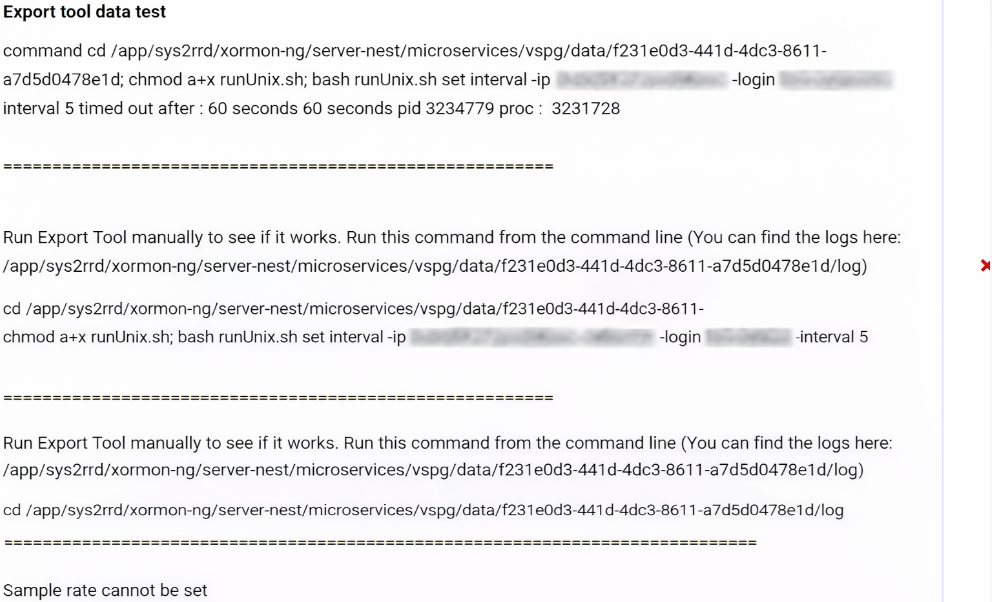 |
Solution: Run the command set interval ... via the command line and set the interval change to 5 minutes (with confirmation yes)
 |
Hitachi REST API
- Error: user authentication failed. The authorization header is incorrect.
Reason: User is not created.
Solution: Create user xormon on the storage, read only access
- LDEV access denied
If you do not see data for specific volumes, for example 00:01:0A (LDEV address in hexadecimal format), you can verify access to the corresponding LDEV using the following curl command. The LDEV address must be converted to decimal format first.
For example, LDEV 00:01:0A corresponds to decimal LDEV 6657.
curl -v -k -u "<ExportTool user>:<password>" -H "Accept: application/json" https://<VSP_IP>:443/ConfigurationManager/v1/objects/ldevs/6657
If the command returns the following error:{ "errorSource" : "/ConfigurationManager/v1/objects/ldevs/6657", "message" : "You do not have permissions for the resource group of the specified object.", "cause" : "You do not have permissions for the resource group of the specified object.", "solution" : "Verify that you have permissions for the resource group of the specified object.", "messageId" : "KART30061-E", "detailCode" : "30061E-0" }Cause
The exporttool user does not have access to all required resource groups in Storage Navigator.
This can occur when the storage array is partitioned into multiple resource groups, for example in environments using GAD. In this case, XorMon may not be able to access LDEVs that belong to resource groups other than the default meta_resource group.
Solution
Assign the exporttool user the required permissions for all resource groups containing the LDEVs that should be monitored by XorMon.
For detailed instructions on configuring resource group permissions for a partitioned array, see the Partitioned Array section of the XorMon documentation
Dernière mise à jour :