VMware
Create a user in the vCenter
-
create user [email protected] with read-only role
- Newer vCenters:
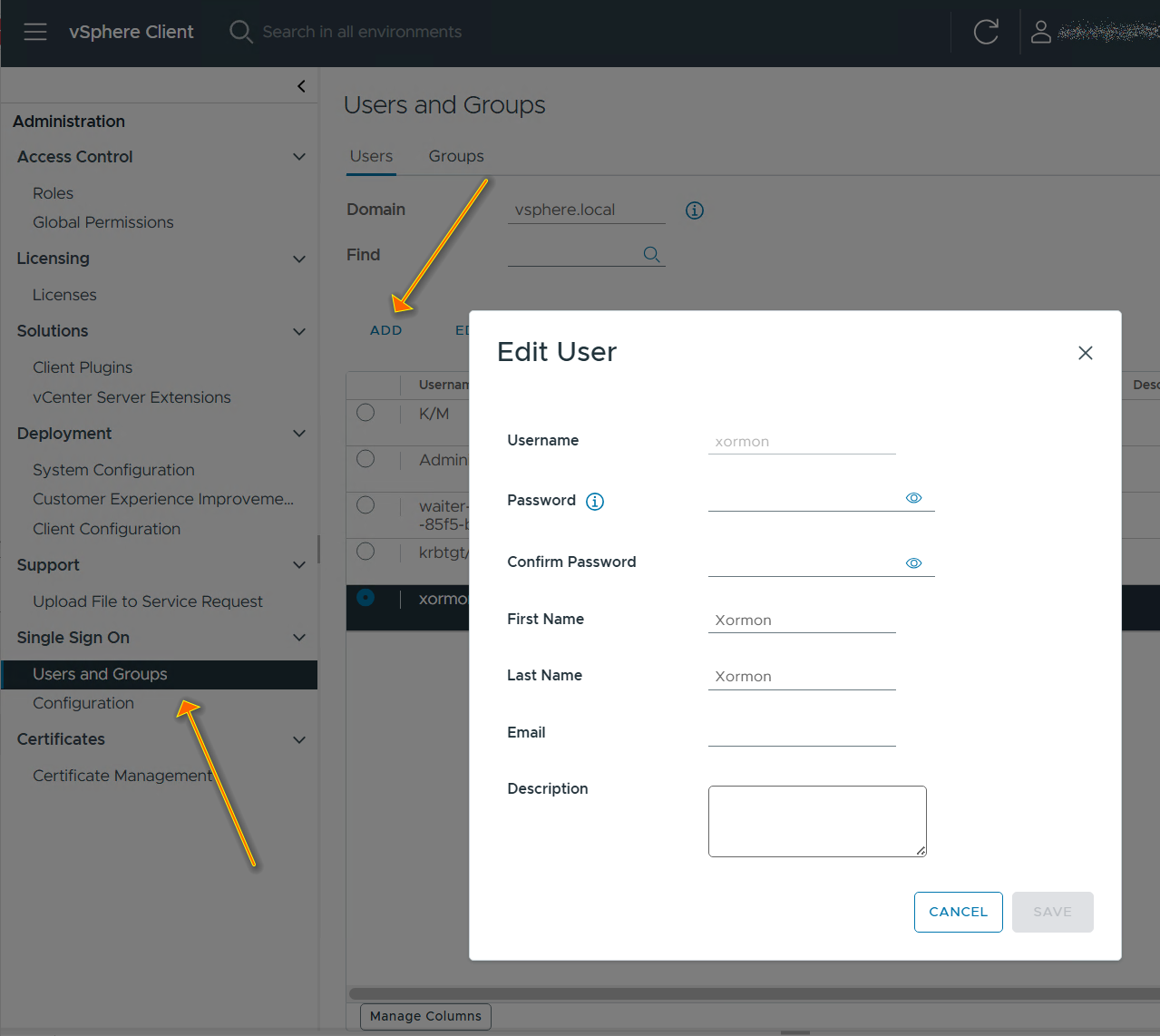
Login to the vCenter. Choose the hamburger menu from the top left and choose Administration.
Then create your "xormon" user.
Then assign the user the read only role. You must check "Propagate to children".
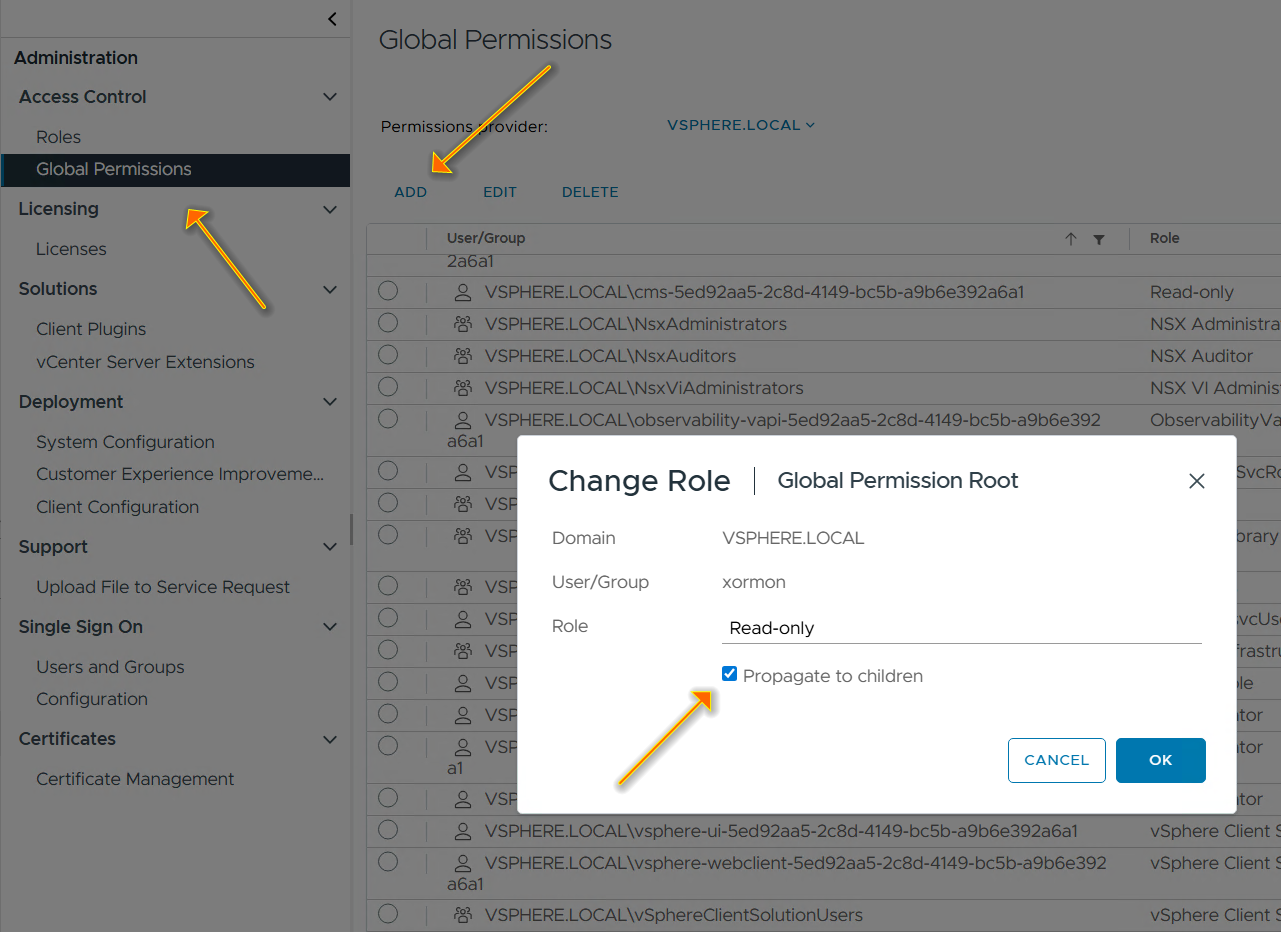
Then when setting up in XorMon ensure you use the account [email protected]
- Older vCenters:
It must be the global one (like below lpar2rrd user in xorux.com domain)
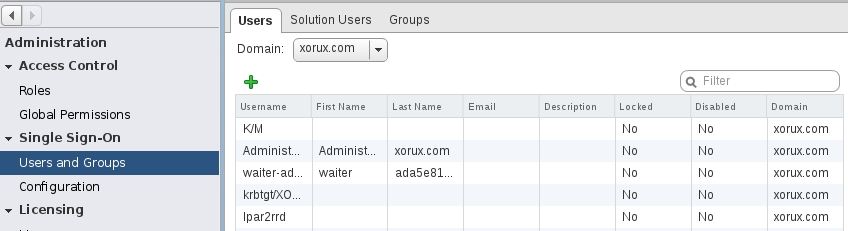
Assign xormon user read-only role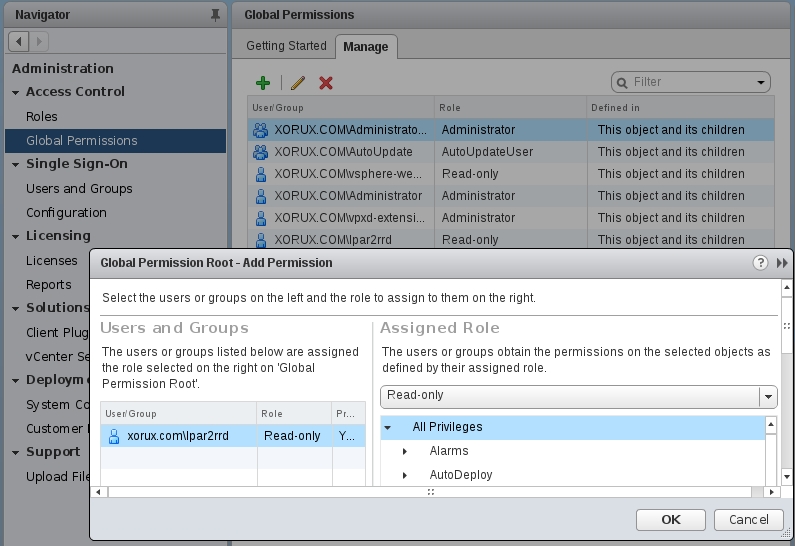
Connection access
-
Allow access from the XorMon host to vCenter on port 443 TCP (https).
XorMon vCenter configuration
- Define VMware hosts (vCenter) in the XorMon UI:
Settings ➡ Device ➡ Server Virtualization ➡ VMware ➡ New ➡ place credentials (username in format: xormon@your_domain)
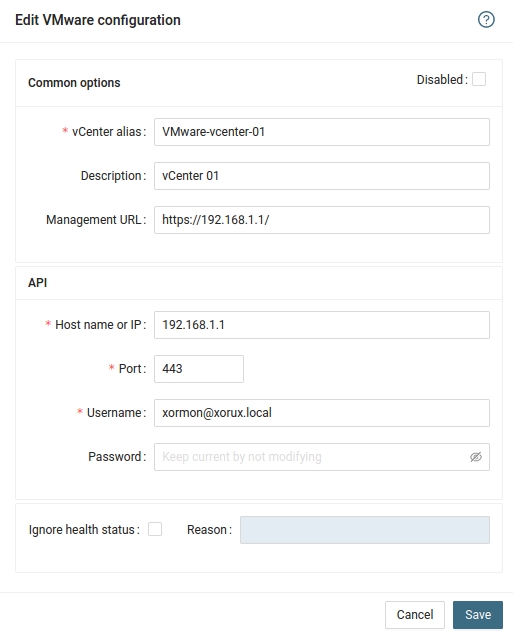
- Run "Test" for the vCenter, it must show "OK"
-
Wait about 1 hour, then refresh the web browser cache by Ctrl-F5
Troubleshooting
- Make sure vCenter connection is working from the cmd line using VMware Perl SDK:
cd ~/xormon-ng/perl-modules
perl vmware-lib/apps/connect.pl --server 192.168.1.1 --username "[email protected]"
  Enter password:
  Connection Successful
  Server Time : 2026-05-15T06:40:53.619768Z